What if a laptop could make every image for a blog: the banner, the diagram, the mascot, and even a new photo of the author in a suit? Qwen-Image 2.1 is Alibaba's new open image model, and we ran all of it on one MacBook Pro. No cloud, no GPU server.
But here's the real mystery. On a Mac, the 4-bit model is supposed to be the smart choice. It is smaller, so it should be lighter and faster. It was lighter. It was not faster.
In this blog, we will look at the best images first, then the places where the model breaks, and then how Q8 and Q4 compare. After that, we will go through the speed and memory numbers for every task. Everything runs on one MacBook Pro M5 Max with 36GB of memory, with ComfyUI as the engine.
What Is Qwen-Image 2.1?
Qwen-Image 2.1 is an image model built from three parts. Each part has one job.
- The DiT (diffusion transformer) has about 7B parameters. It starts from random noise and cleans it, step by step, into an image.
- The text encoder is Qwen3-VL 8B. It reads our prompt, and in edit mode it also looks at our reference photos.
- The VAE turns the DiT's small internal picture into real pixels. It can also output an alpha channel, so the model can make transparent PNGs.
In simple words, the text encoder understands the request, the DiT paints, and the VAE develops the photo.
The full bf16 download is 30.9 GB. On a 36GB Mac, that leaves almost nothing for macOS, so it would swap. So, here comes GGUF quantization to the rescue. It stores each weight with fewer bits, and ComfyUI can load it through the ComfyUI-GGUF node.
Our Test Setup
Let me tabulate the setup for your better understanding:
| Item | Setting |
|---|---|
| Machine | MacBook Pro, Apple M5 Max, 36GB unified memory, on wall power |
| OS | macOS 27.0 |
| Engine | ComfyUI 0.37.0 with ComfyUI-GGUF, PyTorch 2.14 on Metal (MPS) |
| Q8 profile | qwen_image_2.1-Q8_0.gguf (7.2 GB) + Qwen3-VL 8B int8 encoder (8.7 GB) |
| Q4 profile | qwen_image_2.1-Q4_K.gguf (3.9 GB) + Qwen3-VL 8B w4a8 encoder (5.9 GB) |
| VAE | bf16, 0.63 GB, same for both |
| Sampling | 40 steps, CFG 1.0, euler sampler, one fixed seed per prompt |
The test was small on purpose. We used 10 prompts for new images and 5 edits of one real photo, and ran each one at Q8 and at Q4. The prompts covered blog banners, technical diagrams, text, cartoons, a photoreal portrait and a transparent PNG.
We had one hard rule: no swap. A monitor sampled memory every half second and logged every page macOS wrote to the swap file. Any run that touched swap is marked in this post.
What Did Qwen-Image 2.1 Make on the MacBook?
Below are the results, grouped by task. Unless a caption says otherwise, the image is the Q8 version.
Blog Banners
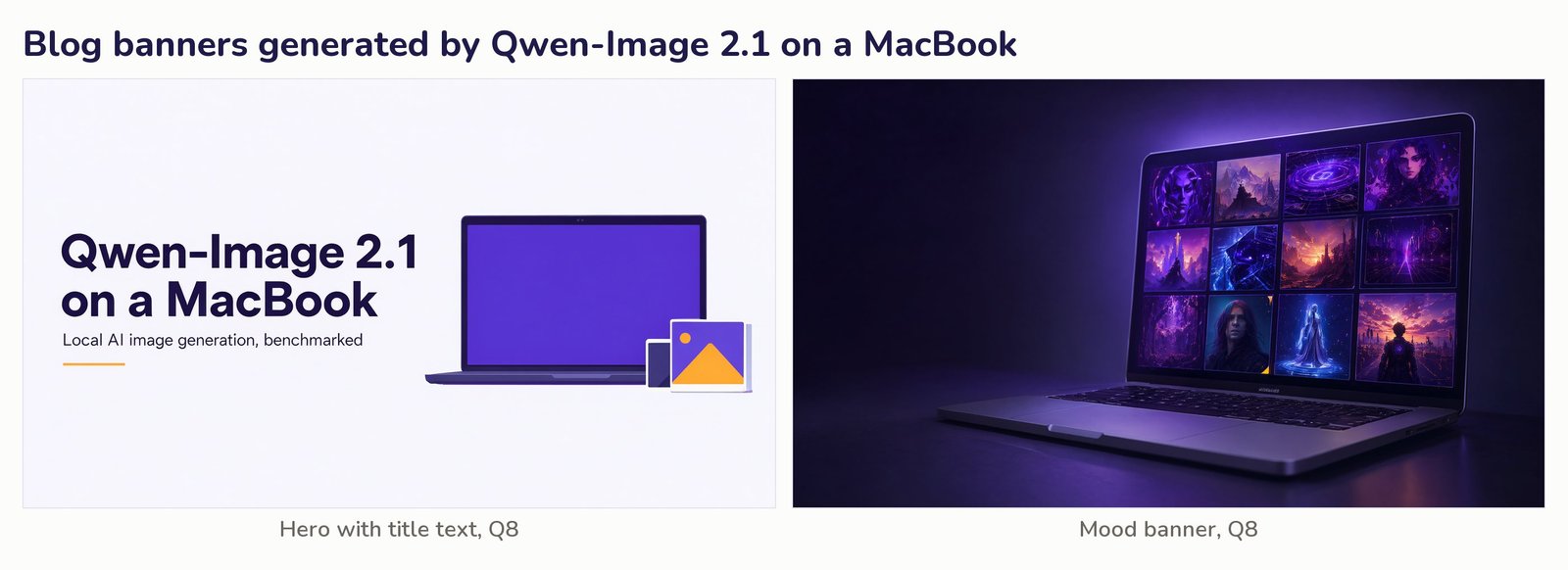
The hero banner came back with the title "Qwen-Image 2.1 on a MacBook" spelled exactly, in the brand colours, with space left for the text. The mood banner had great lighting. Only the tiny logo text under the laptop screen was garbled.
Technical Diagrams
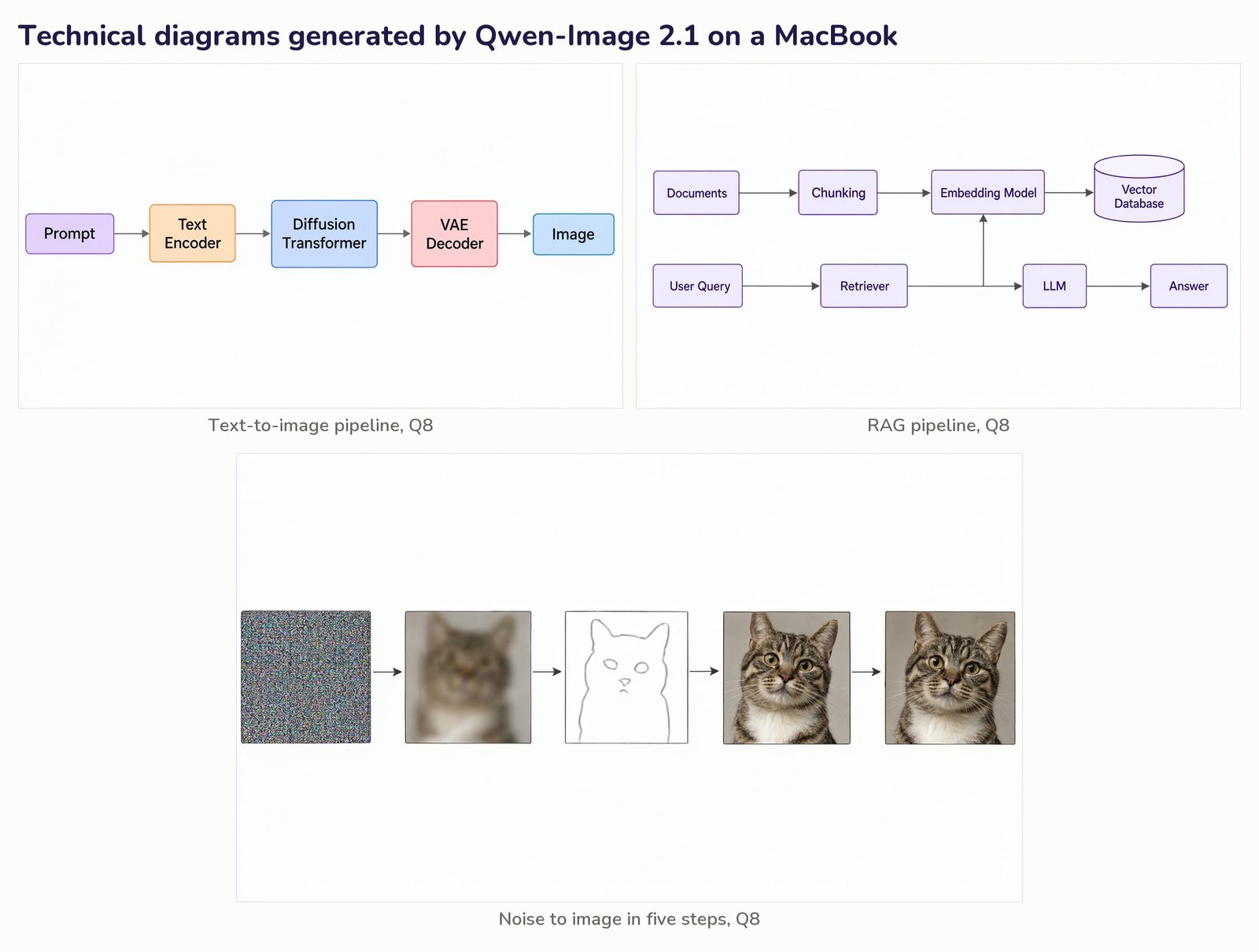
The text-to-image pipeline diagram was perfect: five boxes, the right labels, the right arrows. In the RAG diagram, OCR found every label spelled correctly. But one arrow is wrong: the Retriever points to the Embedding Model instead of the Vector Database. The noise-to-image strip tells the story well, although step 3 turned into a line sketch.
Characters, Photos and Transparent PNGs
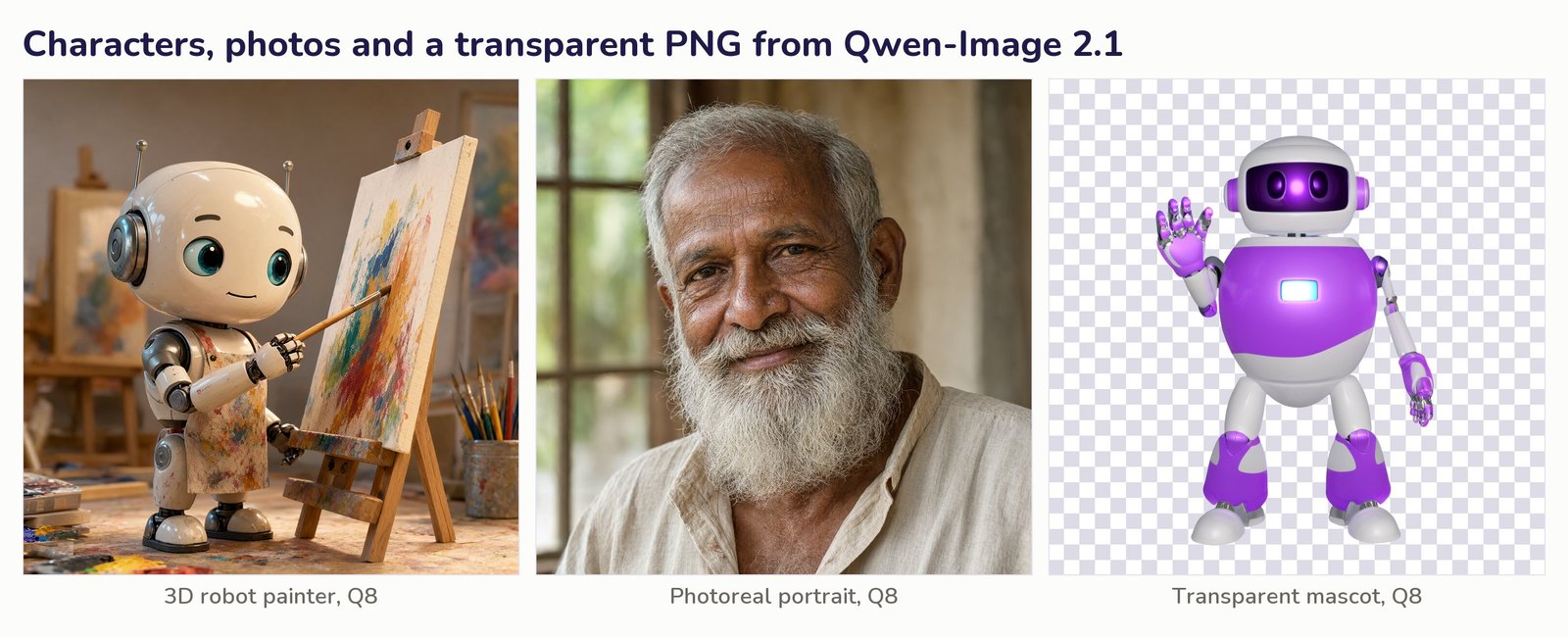
This was the strongest area for new images. The 3D robot painter looks like a film still, and the portrait is photoreal down to the beard. The mascot came out with a real alpha channel: 77% of its pixels are fully transparent. We show it on a checkerboard so the see-through parts are visible.
Editing a Real Photo
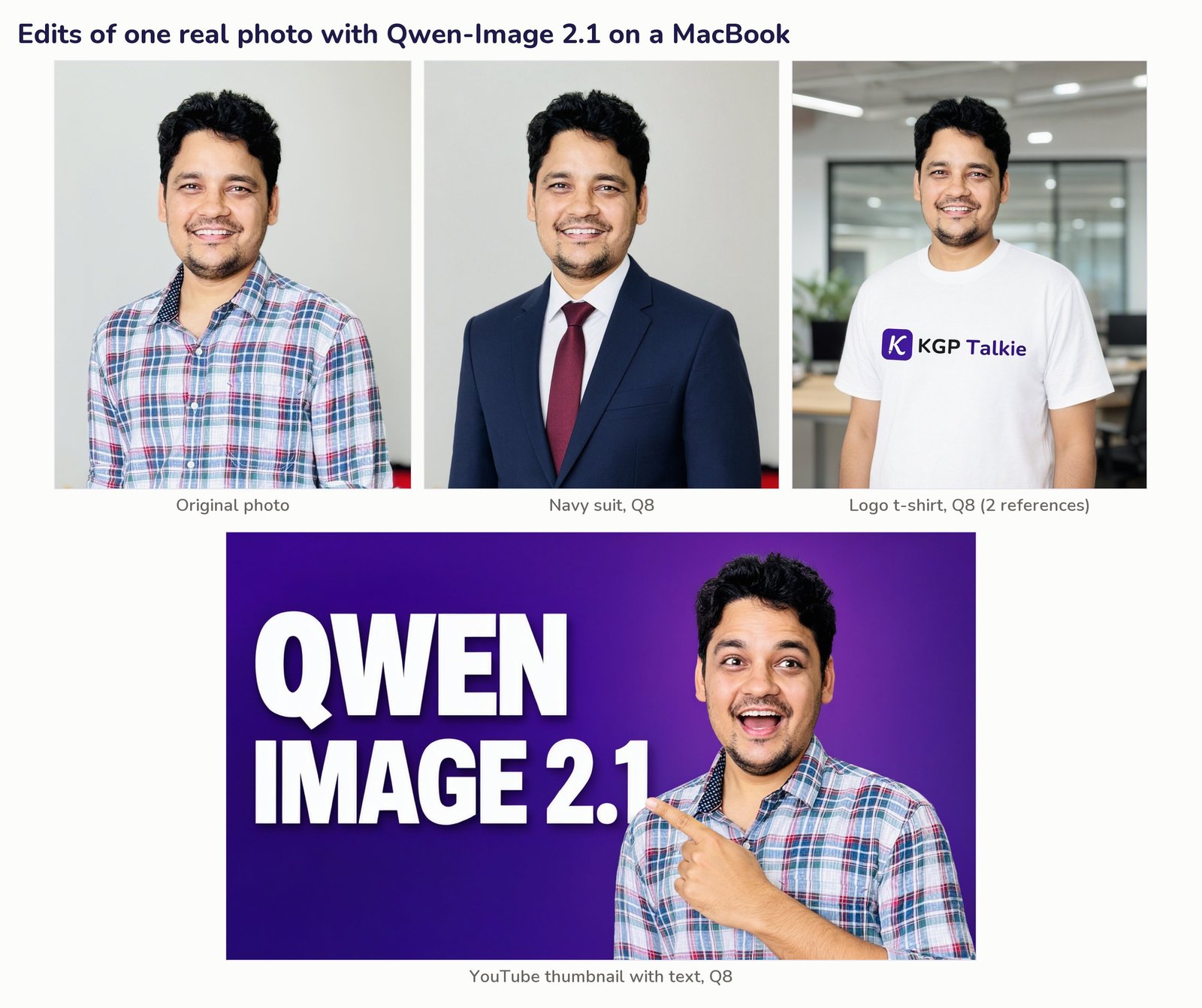
Here, we gave the model one photo of the author and asked for new looks. The suit edit changed the clothes and left the face alone. The t-shirt edit used two reference images, the photo and the KGP Talkie logo, and printed the logo faithfully. The YouTube thumbnail put the author next to "QWEN IMAGE 2.1" in a pointing pose, and OCR read the text exactly.
Style Edits
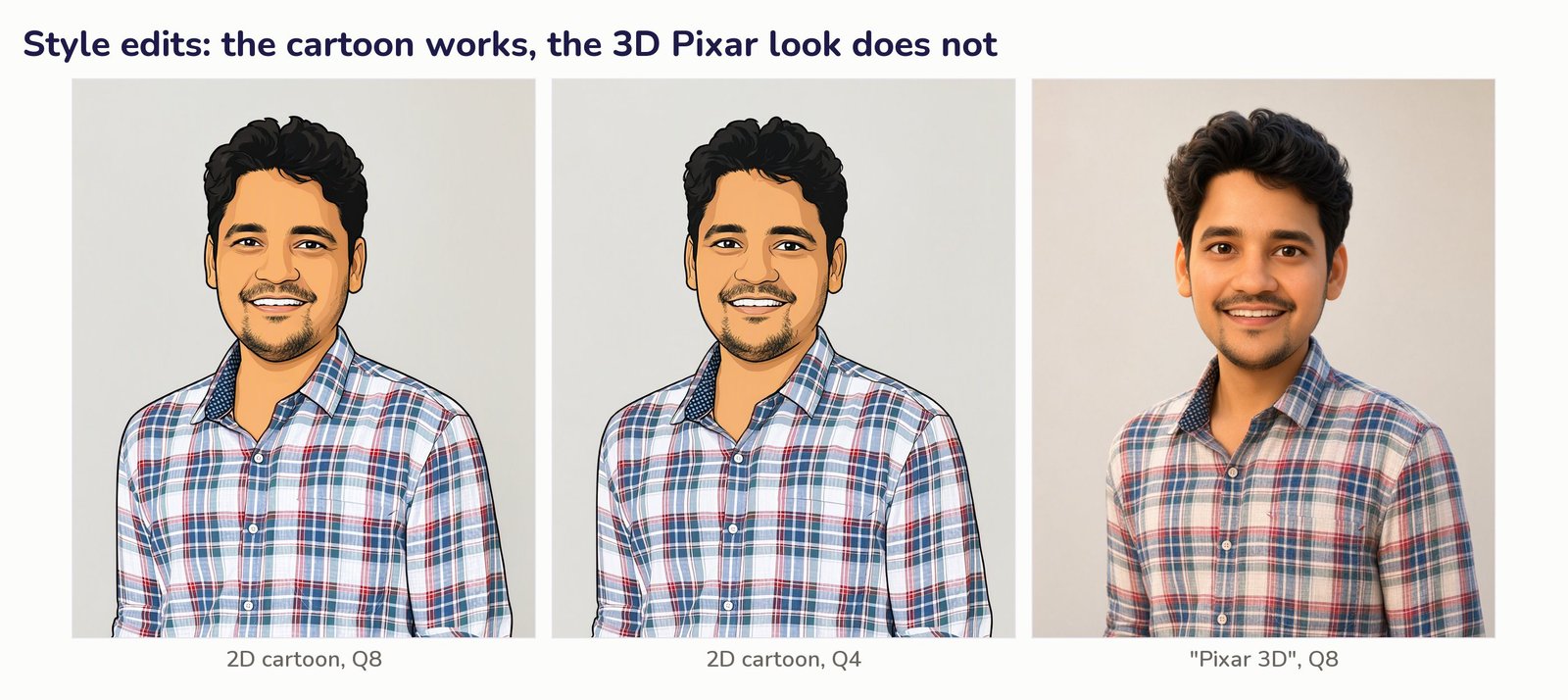
The 2D cartoon worked at both precisions. Q8 cartoonised the face but kept the shirt photographic. Q4 drew the whole picture as a cartoon, which looks more finished. The "Pixar 3D" request failed at both precisions: it returned a younger, smoothed photo, not a 3D character.
Where Does It Break?
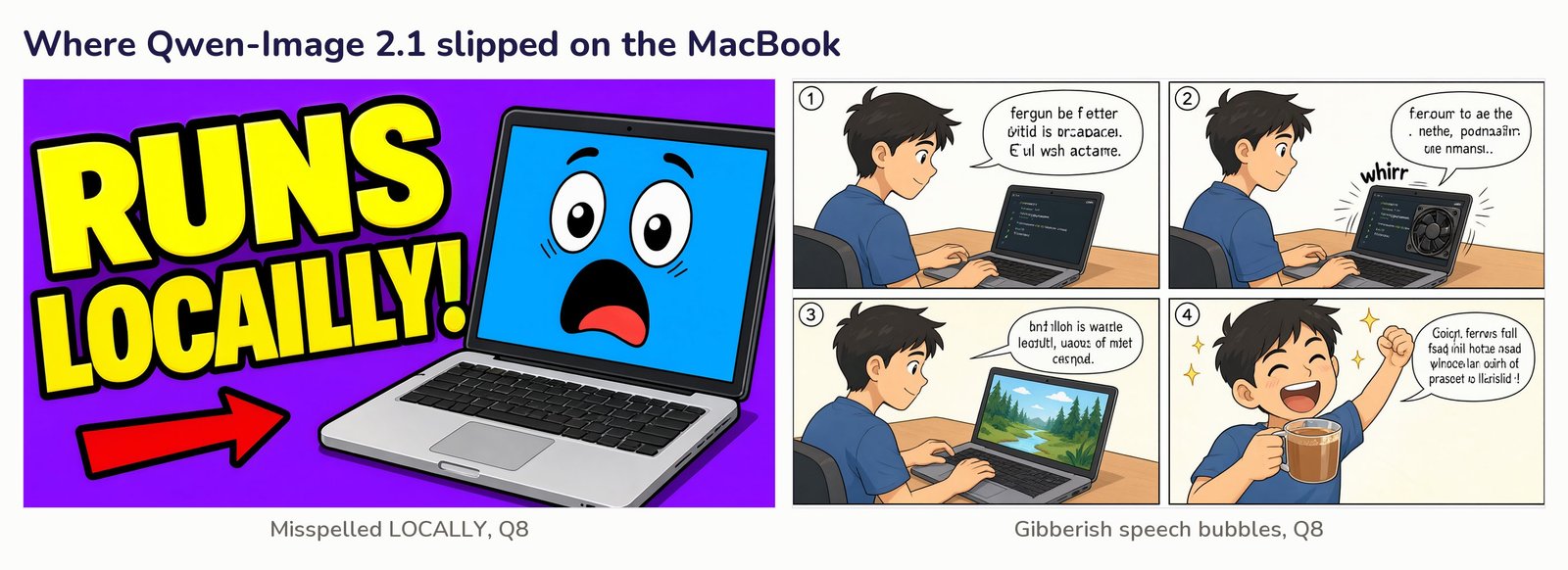
- Long words: the thumbnail asked for "RUNS LOCALLY!". Q8 wrote "LOCAILLY" and Q4 wrote "LOCACLY". Short titles were exact, so keep text short and proofread it.
- Speech bubbles: the four-panel comic kept the same character in every panel and drew "whirr" correctly, but every speech bubble was gibberish. Add dialogue in an editor instead.
- Arrows in diagrams: the labels were right, but one RAG arrow pointed to the wrong box. Check the flow, not just the spelling.
- The 3D style edit: "Pixar 3D" on a real photo gave a de-aged photo at both precisions.
Does Q4 Look Worse Than Q8?
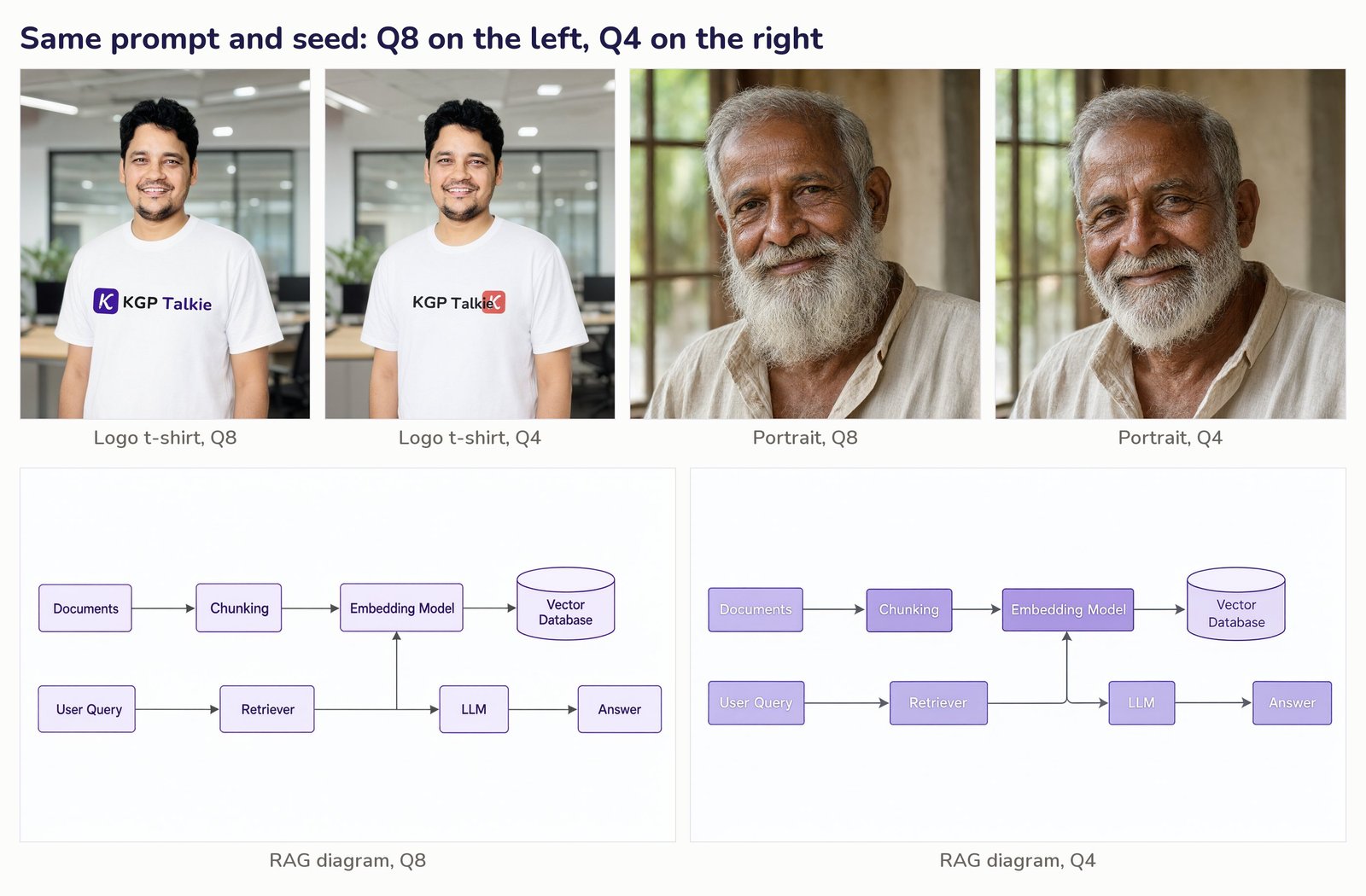
Mostly, no. With the same prompt and seed, the two precisions gave the same layout and nearly the same image. We scored every image from 1 to 5 by eye. Let me tabulate the totals:
| Test set | Q8 score | Q4 score |
|---|---|---|
| 10 new images | 44 of 50 | 40 of 50 |
| 5 photo edits | 20 of 25 | 19 of 25 |
Here, we can see that Q4 lost a few points, not a whole category.
The clearest differences:
- Logo t-shirt: Q8 copied the logo faithfully. Q4 turned the K mark red and moved it after the text.
- RAG diagram: same wrong arrow on both, and Q4 used white text on light boxes, which is harder to read.
- Comic: Q4's story drifted, with a vinyl record and a stranger on the laptop screen.
- Portraits, banners and the pipeline diagram: practically the same.
How Fast Is Qwen-Image 2.1 on the MacBook?
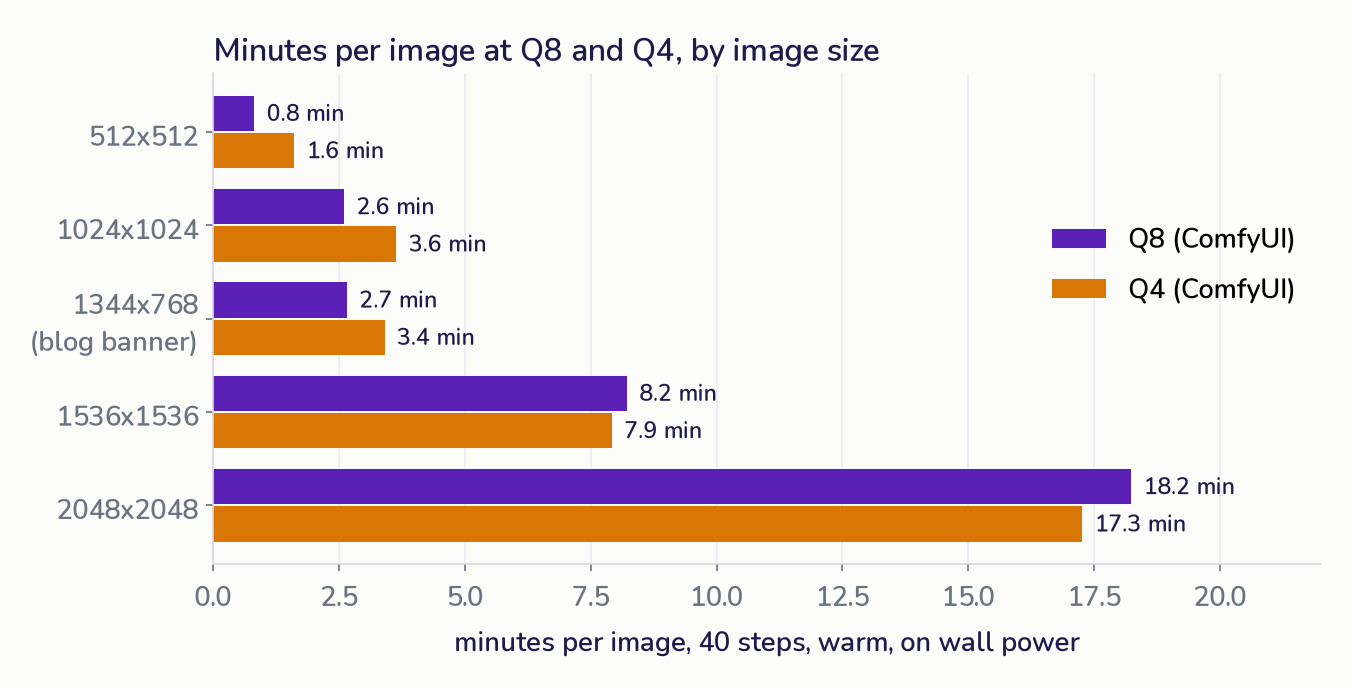
Let me tabulate the warm runs, at 40 steps unless marked:
| Image size | Q8 | Q4 |
|---|---|---|
| 512x512 | 49 s | 96 s |
| 1024x1024 | 156 s (3.86 s per step) | 218 s (5.38 s per step) |
| 1024x1024, 28 steps | 109 s | 157 s |
| 1024x1024, 20 steps | 79 s | 114 s |
| 1344x768 blog banner | 160 s | 204 s |
| 1536x1536 | 493 s | 475 s |
| 2048x2048 | 1094 s | 1035 s (one cold run) |
Here, we can see the surprise from the start of this post. Up to blog-banner size, Q4 takes 28% to almost 2 times longer than Q8. Why? Because Q4 stores weights in a packed 4-bit format, and the Mac's GPU has to unpack them again at every step. At Q8, that unpacking is much cheaper. At 1536 px and above, the attention work grows so large that the unpacking cost stops mattering, and Q4 is a few percent faster.
In practice, the full test set averaged 167 s per image at Q8 and 212 s at Q4. A photo edit took 199 to 268 s at Q8 and 245 to 304 s at Q4, because the text encoder also has to read the reference photos.
Two things decide the wait:
- Image size: going from 1024 px to 2048 px costs about 7 times the time. Generate at 1024 to 1344 px and upscale separately.
- Step count: time falls in a straight line with the steps. 20 steps halves the wait. We did not score 20-step images, so every quality result in this post uses the default 40.
The MacBook also slows down as it warms up. On a cold machine, Q8 ran at 2.85 s per step. During the long runs, it settled at about 3.9 s per step. All the numbers above are from the warm machine.
How Much Memory Does It Need on a 36GB Mac?
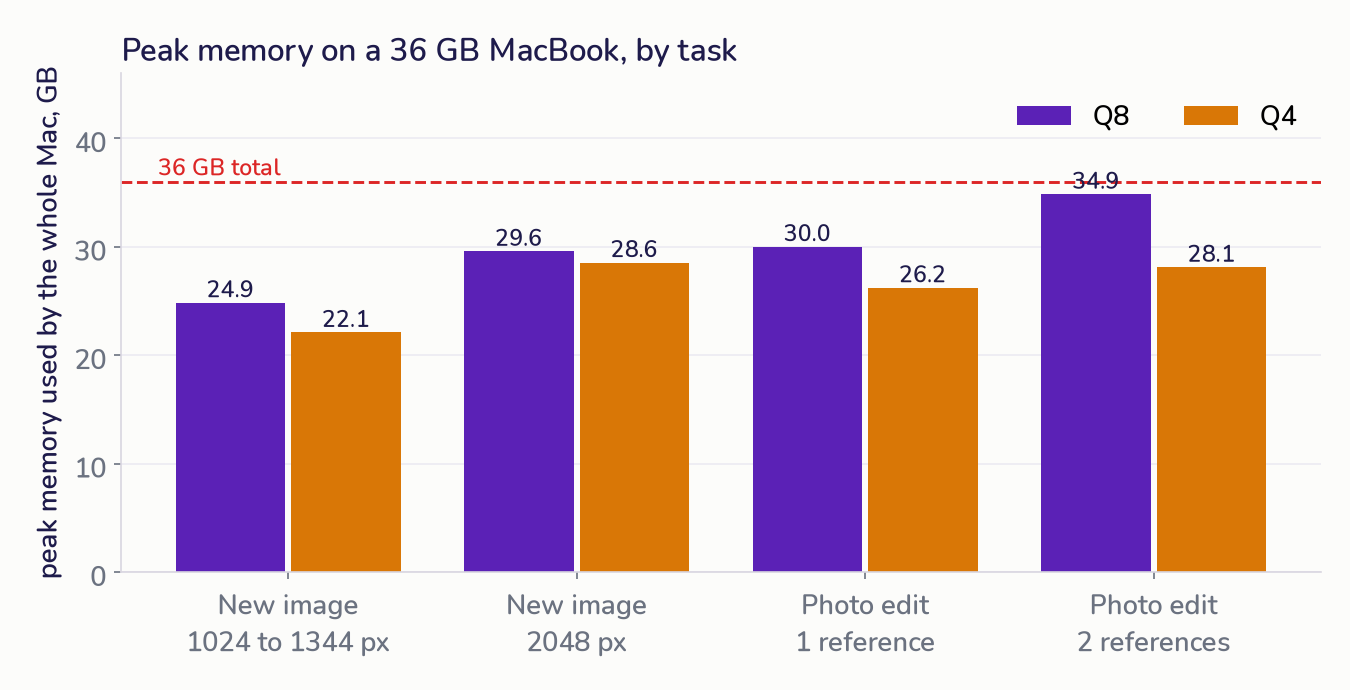
The chart shows the whole Mac, including macOS and the apps that were open. With nothing loaded, the Mac already used 6 to 12 GB. Let me tabulate the ComfyUI process on its own:
| Task | Q8 footprint | Q4 footprint |
|---|---|---|
| New image, 1024 to 1344 px | 14 GB | 11 GB |
| New image, 1536 to 2048 px | 20 to 21 GB | 14 to 18 GB |
| Photo edit, one reference | 21 to 25 GB | 16 to 19 GB |
| Photo edit, two references | 31 GB | 22 GB |
Now the swap results:
- New images: none of the 20 test-set images and none of the speed runs touched swap, at either precision, up to 2048 px.
- Photo edits at Q8: 3 of 5 edits touched swap. Two single-photo edits wrote 0.27 GB and 0.45 GB to swap. The two-reference t-shirt edit reached 31 GB, pushed macOS into critical memory pressure, and wrote 6.5 GB to swap.
- Photo edits at Q4: the whole Mac peaked at 28.1 GB. Only the first edit wrote 0.06 GB, and the other four wrote nothing.
One more lesson came before the real runs. With Chrome and an iPhone simulator open, our first test swapped 3 to 10 GB. After closing them, the idle Mac dropped to about 12 GB used, and new images stayed swap-free. So, close heavy apps before a batch.
So, the reference photo is what costs memory. In edit mode, the Qwen3-VL encoder also reads every reference image, and at Q8 that pushes a 36GB Mac to its limit.
We also tried ComfyUI's --gpu-only mode, which keeps the text encoder on the GPU. It was slower (4.04 against 2.85 s per step on a cold machine) and it swapped, so every number here uses the default mode.
What About MLX?
mlx-serve can run an 8-bit MLX build of the same model natively on Apple Silicon. We ran one 1024x1024 image with it: 119 s at 2.98 s per step, a 21 GB footprint and no swap, and the image looked as good as the ComfyUI one. That is faster than ComfyUI at Q8, but it was a single cold run. It also supports only text-to-image and image-to-image, so it cannot do the multi-reference photo edits above. That is why ComfyUI stayed the main engine for this test.
Which Precision Should We Use?
| Task | Use | Why |
|---|---|---|
| New images up to 1344 px | Q8 | Faster than Q4, slightly better quality, no swap |
| Large images, 1536 px and up | Either | Same speed, both swap-free, Q4 uses less memory |
| Photo edits with one reference | Q4 | Q8 touched swap in 2 of 4 runs |
| Photo edits with two or more references | Q4 | Q8 hit critical memory pressure |
Limitations
- One seed per prompt, so these are single samples, not success rates.
- The 1 to 5 scores are our visual judgement. OCR used the macOS Vision text reader.
- There is no bf16 baseline, because the full model does not fit in 36GB without swap.
- The MLX result is one cold run, and the Q4 2048 px time is also one cold run.
- Speed depends on heat. The same laptop was about 25% faster when cold.
Conclusion
Qwen-Image 2.1 is worth running locally on a 36GB MacBook Pro. At Q8, it makes a 1024 px image in about 2.6 minutes with no swap. It drew banners with exact titles, clean diagrams, film-style characters, photoreal portraits and transparent PNGs. It also edited a real photo into a suit or a thumbnail and kept the face. Long words, speech bubbles, diagram arrows and 3D style edits still need a human check.
On a Mac, Q4 is not the fast option. It is the memory option. Use Q8 for new images and Q4 for photo edits, where Q8 pushes the Mac into swap.
This is how Qwen-Image 2.1 runs on a MacBook Pro M5 Max with ComfyUI. We started with its best images and the places where it breaks, compared Q8 with Q4, and then measured the speed and memory of every task.