In this lesson, we will build a complete chatbot with a real web interface. Everything stands on the RunnableWithMessageHistory pattern from the Chat Message Memory guide.
On top of that pattern, our app adds:
- a Streamlit web interface with a real chat layout (
st.chat_message,st.chat_input) - token-by-token streaming, so we see the response as it is being written
- a user ID input, so many users can chat with their own separate histories
- a "Start New Conversation" button to wipe the history and begin fresh

User input flows through history, the chain, and streaming output to a live Streamlit UI.
Prerequisites: All previous lessons completed. Install Streamlit: pip install streamlit. Ollama running with qwen3.
Full Application Code
First, let's see the complete app in one piece. We save this as chat_stream.py, and later we will run it with streamlit run chat_stream.py. Do not worry about understanding every line yet. We will walk through each block one by one right after.
# chat_stream.py

import streamlit as st

from dotenv import load_dotenv
from langchain_ollama import ChatOllama

from langchain_core.prompts import (
    SystemMessagePromptTemplate,
    HumanMessagePromptTemplate,
    ChatPromptTemplate,
    MessagesPlaceholder
)

from langchain_core.runnables.history import RunnableWithMessageHistory
from langchain_community.chat_message_histories import SQLChatMessageHistory

from langchain_core.output_parsers import StrOutputParser

load_dotenv('./../.env')

st.title("Make Your Own Chatbot")
st.write("Chat with me! Catch me at https://youtube.com/kgptalkie")

base_url = "http://localhost:11434"
model = 'qwen3'

user_id = st.text_input("Enter your user id", "default_user")

def get_session_history(session_id):
    return SQLChatMessageHistory(session_id, connection="sqlite:///chat_history.db")

if "chat_history" not in st.session_state:
    st.session_state.chat_history = []

if st.button("Start New Conversation"):
    st.session_state.chat_history = []
    history = get_session_history(user_id)
    history.clear()

for message in st.session_state.chat_history:
    with st.chat_message(message['role']):
        st.markdown(message['content'])

### LLM Setup
llm = ChatOllama(base_url=base_url, model=model)

system = SystemMessagePromptTemplate.from_template("You are helpful assistant.")
human = HumanMessagePromptTemplate.from_template("{input}")

messages = [system, MessagesPlaceholder(variable_name='history'), human]

prompt = ChatPromptTemplate(messages=messages)

chain = prompt | llm | StrOutputParser()

runnable_with_history = RunnableWithMessageHistory(
    chain,
    get_session_history,
    input_messages_key='input',
    history_messages_key='history'
)

def chat_with_llm(session_id, input):
    for output in runnable_with_history.stream(
        {'input': input},
        config={'configurable': {'session_id': session_id}}
    ):
        yield output

prompt = st.chat_input("What is up?")

if prompt:
    st.session_state.chat_history.append({'role': 'user', 'content': prompt})

    with st.chat_message("user"):
        st.markdown(prompt)

    with st.chat_message("assistant"):
        response = st.write_stream(chat_with_llm(user_id, prompt))

st.session_state.chat_history.append({'role': 'assistant', 'content': response})How Does the Code Work?
1. Load Environment Variables
First, we load our keys (LANGFUSE_SECRET_KEY, LANGFUSE_PUBLIC_KEY, or any others) from the .env file. On Windows, adjust the path to '.env' if the .env file sits in the same directory as the script:
load_dotenv('./../.env')2. Page Header and User ID Input
Next, we draw the page header and ask for a user id. The user_id becomes the session_id for SQLChatMessageHistory, so different users get completely separate conversation histories inside chat_history.db:
st.title("Make Your Own Chatbot")
st.write("Chat with me! Catch me at https://youtube.com/kgptalkie")

user_id = st.text_input("Enter your user id", "default_user")
3. History Factory
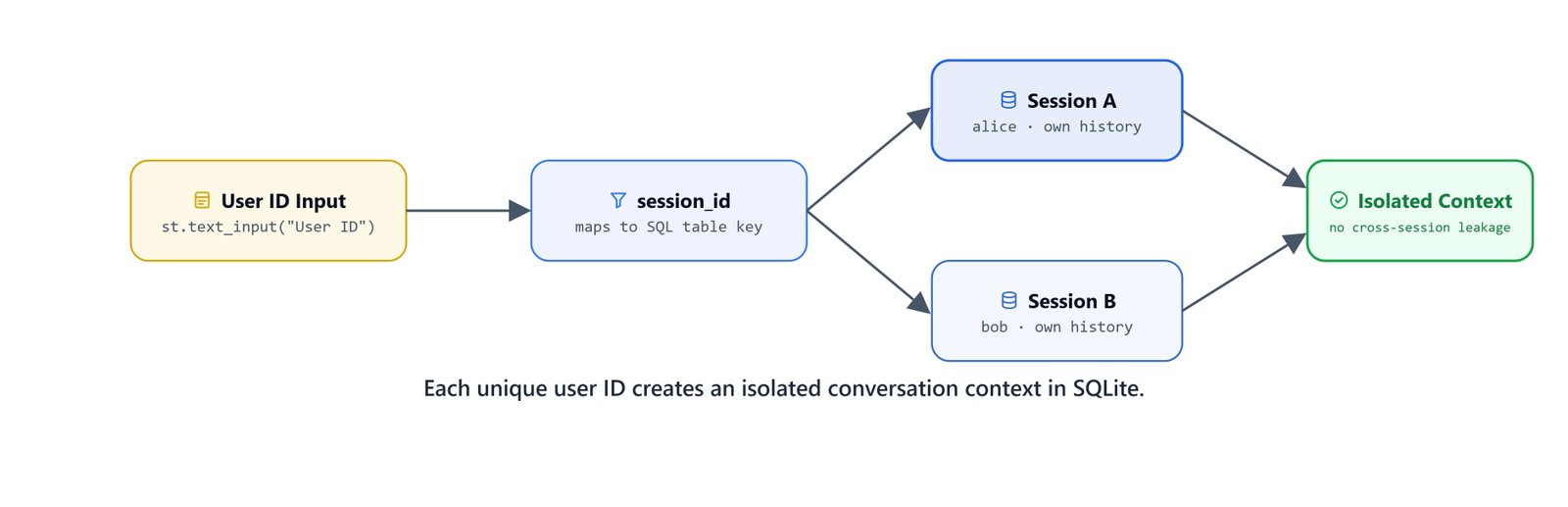
Each unique user ID creates an isolated conversation context, persisted independently in SQLite.
This is the same history factory we wrote in the previous lesson. It creates (or opens) a SQLite database named chat_history.db in the script's directory, and returns a history object for the given session_id:
def get_session_history(session_id):
    return SQLChatMessageHistory(session_id, connection="sqlite:///chat_history.db")
4. Streamlit Session State for Display History
Here is a Streamlit detail we must know: Streamlit reruns the entire script on every user action, and st.session_state is how values survive across those reruns. Our chat_history is a plain Python list of {'role': ..., 'content': ...} dicts. It is used only to redraw the chat bubbles on screen, and it is separate from the SQL history:
if "chat_history" not in st.session_state:
    st.session_state.chat_history = []
5. Start New Conversation Button
When this button is clicked, two things happen. The display history (st.session_state.chat_history) is cleared, so the chat bubbles disappear. And the SQL history (history.clear()) is wiped, so the model loses all context for this session_id:
if st.button("Start New Conversation"):
    st.session_state.chat_history = []
    history = get_session_history(user_id)
    history.clear()
Note
If the user changes the user_id text input after a conversation, a new empty session starts automatically, no button click needed. The old session's SQL history remains intact in the database.
6. Redrawing Existing Chat Bubbles
On every rerun, this loop redraws all the prior messages from session_state into the chat layout. Without this loop, the conversation would disappear from the screen on every new message:
for message in st.session_state.chat_history:
    with st.chat_message(message['role']):
        st.markdown(message['content'])
7. LLM and Chain Setup
Now, the LangChain side, and it is exactly the chain we built in the previous lesson. MessagesPlaceholder(variable_name='history') reserves the slot where the conversation history goes, between the system message and the current user input. The chain is prompt | llm | StrOutputParser(), the same three blocks as all our previous LCEL examples:
llm = ChatOllama(base_url=base_url, model=model)

system = SystemMessagePromptTemplate.from_template("You are helpful assistant.")
human = HumanMessagePromptTemplate.from_template("{input}")

messages = [system, MessagesPlaceholder(variable_name='history'), human]

prompt = ChatPromptTemplate(messages=messages)

chain = prompt | llm | StrOutputParser()
8. Wrapping with Memory
We wrap the chain with memory, the same way as before. input_messages_key='input' names the dict key that holds the user's current message, and history_messages_key='history' must match the variable_name of MessagesPlaceholder:
runnable_with_history = RunnableWithMessageHistory(
    chain,
    get_session_history,
    input_messages_key='input',
    history_messages_key='history'
)
9. Streaming Generator
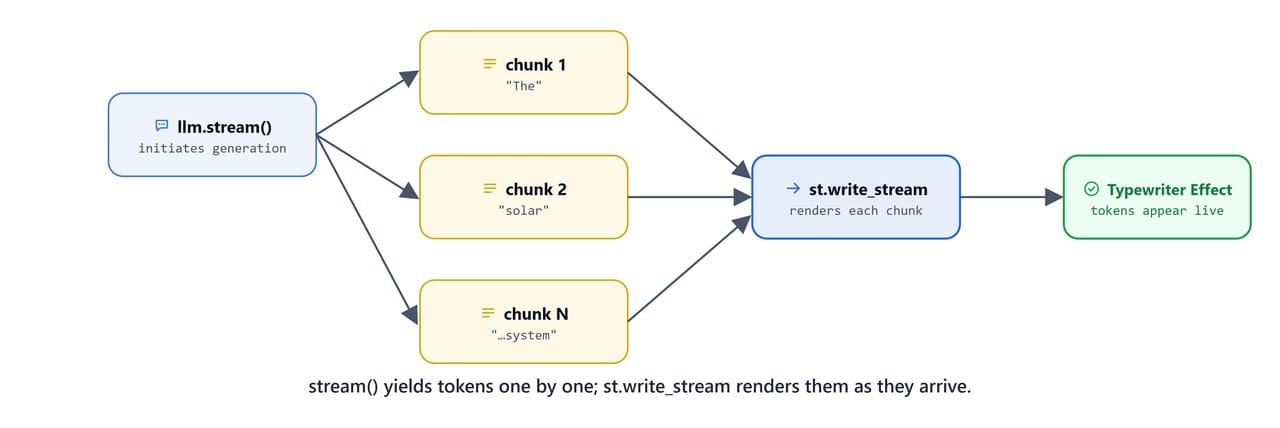
stream() yields tokens one by one; st.write_stream renders them live as they arrive.
Here comes the only real change from the notebook version: we call .stream() instead of .invoke(). .stream() returns an iterator that yields string chunks as the tokens arrive from the LLM. Our function passes them along with yield, so st.write_stream() can consume them one by one:
def chat_with_llm(session_id, input):
    for output in runnable_with_history.stream(
        {'input': input},
        config={'configurable': {'session_id': session_id}}
    ):
        yield output
Tip
This is the key difference from the notebook version: .stream() instead of .invoke(). The SQL history is still written after the full response is assembled, streaming only affects what the user sees in real time.
10. Chat Input and Response
Finally, the chat loop itself.
Step by step:
st.chat_inputrenders the text box at the bottom of the page and returns the submitted text (orNoneif nothing was submitted)- The user message is added to
session_state.chat_historyand displayed immediately st.write_stream()consumes our generator and renders the tokens one by one into the assistant chat bubble as they arriveresponseis the full string returned byst.write_stream()after streaming completes. It is then saved tosession_statefor redrawing on the next rerun
prompt = st.chat_input("What is up?")

if prompt:
    st.session_state.chat_history.append({'role': 'user', 'content': prompt})

    with st.chat_message("user"):
        st.markdown(prompt)

    with st.chat_message("assistant"):
        response = st.write_stream(chat_with_llm(user_id, prompt))

st.session_state.chat_history.append({'role': 'assistant', 'content': response})How Do We Run the App?
# Windows
streamlit run chat_stream.py

# Linux / macOS
streamlit run chat_stream.py
We open http://localhost:8501 in the browser. The app starts with an empty chat. We type a message, press Enter, and watch the assistant stream its reply token by token.
Important
The user_id text input is evaluated before any chat is rendered. If you change user_id mid-conversation, the chat_history in session_state still shows the old messages visually, but the model will use the new session's SQL history. Click "Start New Conversation" after changing user_id to sync them.
How Do the Pieces Fit Together?
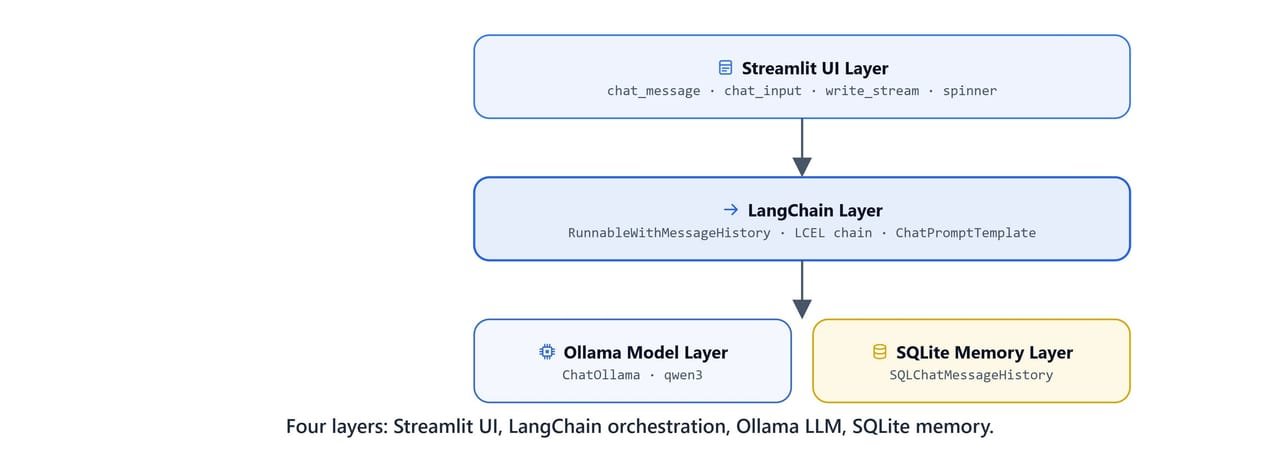
Four layers work together: Streamlit UI, LangChain orchestration, the Ollama LLM, and SQLite memory.
Browser (Streamlit UI)
    │
    ├── st.text_input(user_id)          ← selects the session
    ├── st.button("Start New")          ← clears SQL + display history
    ├── st.chat_message (loop)          ← redraws prior messages
    ├── st.chat_input                   ← captures new user message
    │
    ▼
chat_with_llm(user_id, prompt)          ← generator using .stream()
    │
    ▼
RunnableWithMessageHistory
    ├── get_session_history(user_id)    ← loads from SQLite
    │       └── SQLChatMessageHistory  ← chat_history.db
    │
    ├── ChatPromptTemplate
    │       ├── SystemMessage
    │       ├── MessagesPlaceholder    ← history injected here
    │       └── HumanMessage {input}
    │
    ├── ChatOllama (qwen3)             ← streams tokens
    └── StrOutputParser                ← yields string chunks
    │
    ▼
st.write_stream()                       ← renders chunks in real-time
What You Built
In this lesson, we turned the memory pattern into a real chatbot app. Let me tabulate what we built and how each feature is implemented.
| Feature | Implementation |
|---|---|
| Streaming output | runnable_with_history.stream() + st.write_stream() |
| Persistent memory | SQLChatMessageHistory → chat_history.db |
| Multi-user sessions | session_id from st.text_input |
| Conversation reset | history.clear() + session_state.chat_history = [] |
| History display on rerun | Loop over st.session_state.chat_history |
| Prompt template with history | MessagesPlaceholder in ChatPromptTemplate |
This is how we build a chatbot. The memory wrapper remembers, SQLite stores, Streamlit draws, and .stream() makes it feel alive. The same pattern scales directly to production chatbots backed by PostgreSQL, Redis, or any other BaseChatMessageHistory implementation LangChain supports.