Claude Desktop is an MCP host. It can connect to many MCP servers at once and expose all their tools inside a conversation. Instead of writing a client script, we register servers once in a config file, restart the app, and Claude can call them on demand.
In this blog, we wire up our own servers and a set of community servers through claude_desktop_config.json. Because Claude Desktop launches each server as a subprocess, every server must use the stdio transport.
Note
Prerequisites: Claude Desktop installed (see MCP Dev Setup), plus uv and Node.js on your PATH so uv, uvx, and npx work from any terminal.
Servers must use stdio
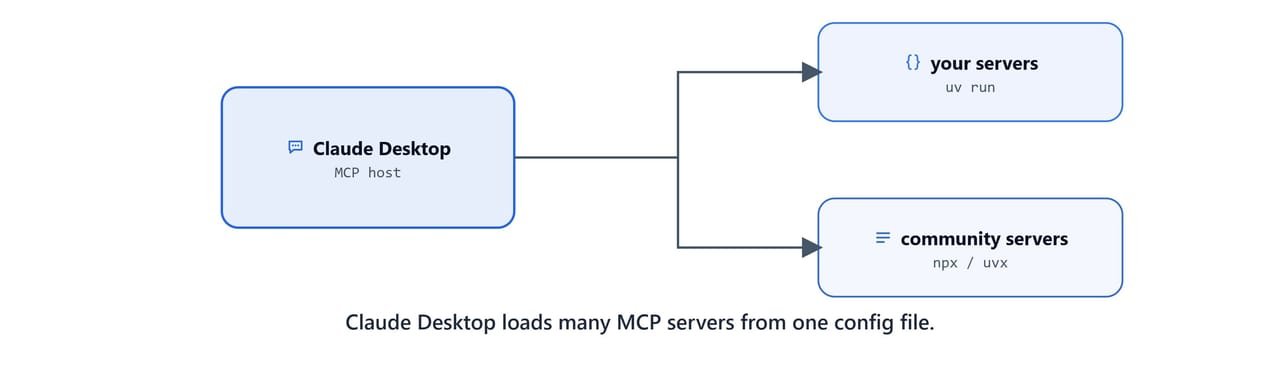
Claude Desktop starts each server itself and talks to it over standard in/out. So the same math and weather servers from earlier switch to the stdio transport:
# math_server.py
from fastmcp import FastMCP

mcp = FastMCP("Demo 🚀")

@mcp.tool
def add(a: int, b: int) -> int:
    """Add two numbers"""
    return a + b

@mcp.tool
def multiply(a: int, b: int) -> int:
    """Multiply two numbers"""
    return a * b

@mcp.tool
def subtract(a: int, b: int) -> int:
    """Subtract two numbers"""
    return a - b

@mcp.tool
def divide(a: int, b: int) -> float:
    """Divide two numbers"""
    if b == 0:
        return "Error: Division by zero"
    return a / b

if __name__ == "__main__":
    mcp.run(transport="stdio")
    # mcp.run(transport="streamable-http", port=8000)
The weather server is the same code as before, ending in mcp.run(transport="stdio").
Finding the config file
| OS | Config path |
|---|---|
| Windows | %APPDATA%\Claude\claude_desktop_config.json |
| macOS | ~/Library/Application Support/Claude/claude_desktop_config.json |
On Windows, paste %APPDATA%\Claude into the File Explorer address bar to open the folder.
Tip
We can also open the file from inside Claude Desktop via its settings (Developer → Edit Config). If the file does not exist yet, create it with { "mcpServers": {} } as the starting content.
Registering your own servers
Each entry under mcpServers gives the server a name plus the command to launch it. Use uv run --directory <abs-path> <script>:
{
  "mcpServers": {
    "weather": {
      "command": "uv",
      "args": [
        "run", "--directory",
        "C:\\Users\\your-username\\projects\\mcp-course\\05 MCP Servers with Claude Desktop",
        "weather_server.py"
      ]
    },
    "math_server": {
      "command": "uv",
      "args": [
        "run", "--directory",
        "C:\\Users\\your-username\\projects\\mcp-course\\05 MCP Servers with Claude Desktop",
        "math_server.py"
      ]
    }
  }
}
Important
Replace your-username and the directory with your real absolute path. JSON requires escaped backslashes (\\) on Windows.
On Linux/macOS: use a normal path such as /home/your-username/projects/mcp-course/05 MCP Servers with Claude Desktop.
After saving, fully quit and reopen Claude Desktop. Our tools appear under the tools (hammer) icon in the chat box. Now we can ask things like "What's 12 times 342?" or "What's the weather in Tokyo?"

Adding community servers
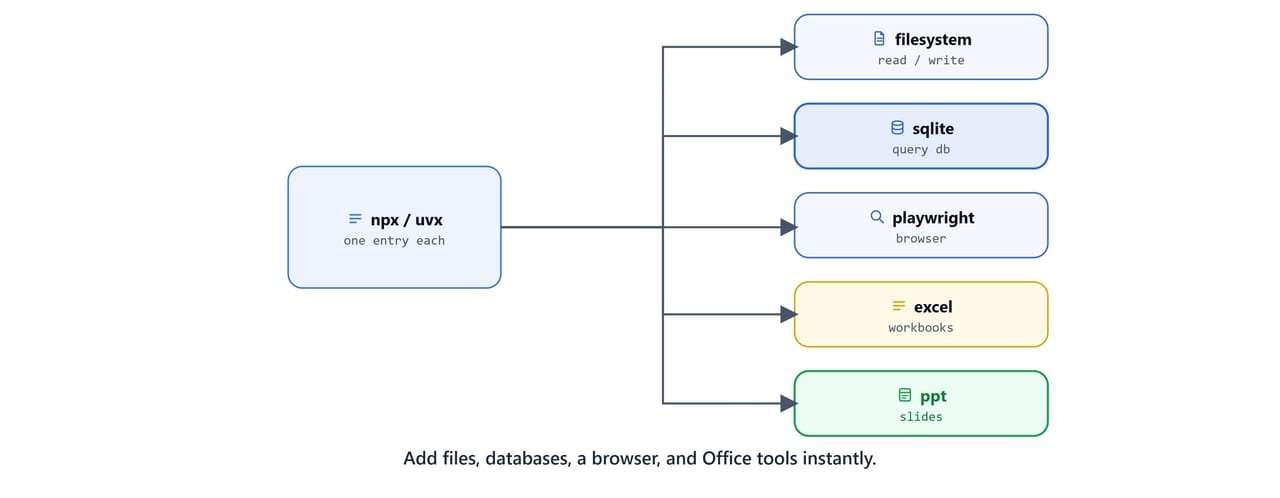
The MCP ecosystem ships hundreds of ready-made servers we can add with npx (Node) or uvx (Python). Add any of these alongside our own entries:
{
  "mcpServers": {
    "playwright": {
      "command": "npx",
      "args": ["@playwright/mcp@latest"]
    },
    "airbnb": {
      "command": "npx",
      "args": ["-y", "@openbnb/mcp-server-airbnb", "--ignore-robots-txt"]
    },
    "filesystem": {
      "command": "npx",
      "args": [
        "-y", "@modelcontextprotocol/server-filesystem",
        "C:\\Users\\your-username\\Downloads"
      ]
    },
    "sqlite": {
      "command": "uvx",
      "args": [
        "git+https://github.com/laxmimerit/mcp-server-sqlite.git",
        "--db-path",
        "C:\\Users\\your-username\\Downloads\\employees.db"
      ]
    },
    "excel": {
      "command": "cmd",
      "args": ["/c", "npx", "--yes", "@negokaz/excel-mcp-server"],
      "env": { "EXCEL_MCP_PAGING_CELLS_LIMIT": "4000" }
    },
    "ppt": {
      "command": "uvx",
      "args": ["--from", "office-powerpoint-mcp-server", "ppt_mcp_server"]
    }
  }
}
What each one adds:
- playwright: browser automation (navigate, click, scrape pages).
- airbnb: search Airbnb listings.
- filesystem: read/write files in a folder you allow (here,
Downloads). - sqlite: query a local SQLite database (
--db-pathpoints at the file). - excel: read and write
.xlsxworkbooks. - ppt: create and edit PowerPoint decks.
Note
On Windows, the excel server is launched through cmd /c npx so the npx shim resolves correctly. The first run of any npx/uvx server downloads it, so allow a moment before the tools appear.
Tip
Browse more servers at github.com/modelcontextprotocol/servers and the community list github.com/punkpeye/awesome-mcp-servers.
Servers that need secrets
Some servers read credentials from an env block, for example a Notion integration token:
{
  "mcpServers": {
    "notionApi": {
      "command": "npx",
      "args": ["-y", "@notionhq/notion-mcp-server"],
      "env": {
        "NOTION_TOKEN": "your-notion-integration-token"
      }
    }
  }
}
Caution
claude_desktop_config.json can contain live API keys and tokens. Never commit this file to git, never paste it into a chat or screenshot, and never share it. Replace every placeholder (your-notion-integration-token, database paths, usernames) with your own values, and revoke any token that is accidentally exposed.
We can also point Claude Desktop at a remote MCP server we have deployed, using the mcp-remote bridge:
{
  "mcpServers": {
    "remote-research-server": {
      "command": "npx",
      "args": ["mcp-remote", "http://your-ec2-public-ip:8000/mcp", "--allow-http"]
    }
  }
}
Important
Replace your-ec2-public-ip with the public address of the server you deploy in Deploy an MCP Server on AWS EC2. Use --allow-http only for testing; prefer HTTPS for anything exposed to the internet.
Recap
- Claude Desktop loads servers from
claude_desktop_config.json(%APPDATA%\Claude\...on Windows). - Our servers must run on the stdio transport and are launched with
uv run --directory <abs-path> <script>. - Community servers add huge capability with one
npx/uvxentry. - Restart Claude Desktop after editing, and treat the config file as a secret.
With Excel and PowerPoint servers connected, we can now turn Claude Desktop into a data analyst. See MCP for Data Analysis with Claude Desktop.