A local MCP server only helps us. To share it, or to give Claude Desktop a tool that runs in the cloud, we deploy it to a server. In this blog, we host the research assistant server on an Amazon Linux EC2 instance. We serve it over the Streamable HTTP transport so any MCP client can reach it.
Two changes adapt the server for the cloud: it embeds with OpenAI (no local GPU needed) and it binds to 0.0.0.0 so it listens on the instance's public address.
Note
Prerequisites: the server from Research Assistant with MCP and LangGraph, an AWS account, and an OpenAI API key. Basic AWS familiarity helps but each step is spelled out.
Launch the EC2 instance

In the AWS console, launch an Amazon Linux EC2 instance and:
- Create or choose a key pair (download the
.pemfile, e.g.mcp.pem). - In the security group, allow inbound SSH (port 22) from your IP and a custom TCP rule for port 8000 (the MCP server port).
Caution
Opening port 8000 to 0.0.0.0/0 exposes your server to the whole internet. For learning that is fine; for anything real, restrict the source to known IPs and put the server behind HTTPS.
Connect over SSH
Use the .pem key to connect. Replace the host with your instance's public DNS from the EC2 console.
From Windows (PowerShell / Command Prompt):
# If the .pem file is in the current directory
ssh -i "mcp.pem" ec2-user@your-ec2-public-dns.compute.amazonaws.com
On Linux/macOS: the same command works, but you may first need to tighten the key's permissions:
chmod 400 mcp.pem
ssh -i "mcp.pem" ec2-user@your-ec2-public-dns.compute.amazonaws.com
Important
Always log in as ec2-user (not root) on Amazon Linux. Replace your-ec2-public-dns with the actual public DNS shown in the EC2 console (for example ec2-XX-XX-XX-XX.ap-south-1.compute.amazonaws.com). Never share your .pem file or your instance's real address publicly.
Install Anaconda and uv on the server
Once connected, update the system and install Anaconda.
# 1. Update the system
sudo yum update -y

# 2. Download the Anaconda installer
curl -O https://repo.anaconda.com/archive/Anaconda3-2025.06-0-Linux-x86_64.sh

# 3. Run the installer
bash Anaconda3-2025.06-0-Linux-x86_64.sh
Follow the prompts, accept the license, and use the default install location /home/ec2-user/anaconda3. When asked about shell initialization, choose "no" initially, then add it to PATH manually:
export PATH="/home/ec2-user/anaconda3/bin:$PATH"
echo 'export PATH="/home/ec2-user/anaconda3/bin:$PATH"' >> ~/.bashrc
source ~/.bashrc
Initialize conda and install uv:
conda init bash
source ~/.bashrc
pip install uv
Verify the toolchain:
conda --version
python --version
uv --version
Tip
The Amazon Deep Learning AMI shows a welcome banner with the tools and GPU configuration it ships with. A plain Amazon Linux AMI works fine here since this server embeds with OpenAI rather than a local model.
Adapt the server for the cloud
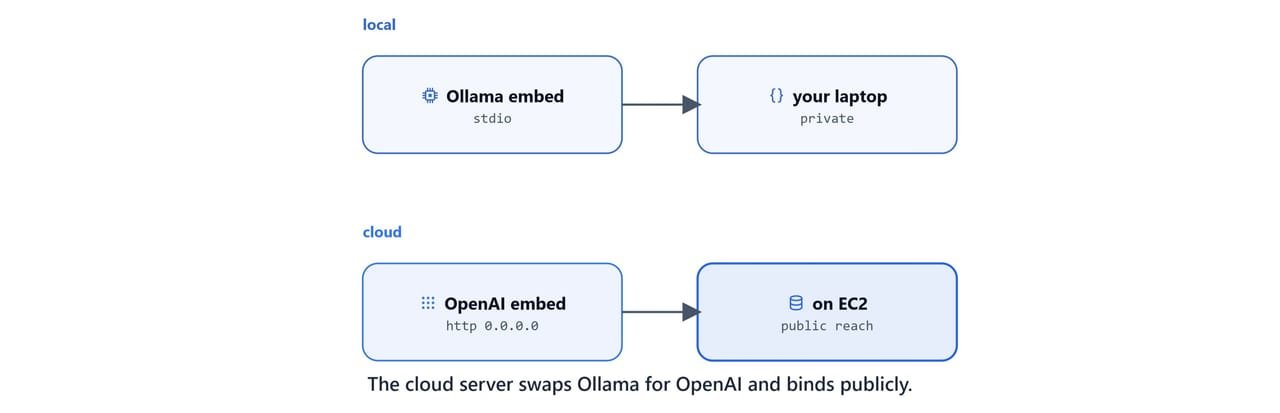
Copy your server folder to the instance (with scp, git clone, or by pasting the file) and adjust two things in server.py.
First, embed with OpenAI instead of Ollama. A cloud server has no local model:
from langchain_openai import OpenAIEmbeddings
from dotenv import load_dotenv

load_dotenv()

EMBED_MODEL = "text-embedding-3-small"
embeddings = OpenAIEmbeddings(model=EMBED_MODEL)
Second, serve over HTTP bound to all interfaces so the instance's public IP can receive requests:
if __name__ == "__main__":
    mcp.run(transport="http", host="0.0.0.0")
Create a .env on the server with your key:
OPENAI_API_KEY=your-openai-api-keyImportant
Binding to host="0.0.0.0" makes the server listen on every network interface, including the public one. That is what makes it reachable. Keep your OPENAI_API_KEY in .env, never in the code or in version control.
Install dependencies and run it:
uv sync
uv run python server.py
The server is now reachable at http://your-ec2-public-dns.compute.amazonaws.com:8000/mcp.
Tip
An SSH session ends when you disconnect, which stops the server. To keep it running, start it inside tmux (tmux new -s mcp, run the server, detach with Ctrl-b d) or with nohup uv run python server.py &. For production, run it as a systemd service.
Connect Claude Desktop to the remote server

On your laptop, point Claude Desktop at the remote server using the mcp-remote bridge in claude_desktop_config.json:
{
  "mcpServers": {
    "remote-research-server": {
      "command": "npx",
      "args": ["mcp-remote", "http://your-ec2-public-dns.compute.amazonaws.com:8000/mcp", "--allow-http"]
    }
  }
}
Restart Claude Desktop, and our cloud-hosted research tools appear alongside our local ones.
Important
Replace the URL with your instance's real address. --allow-http is for testing only. For real deployments, terminate HTTPS in front of the server (for example with a reverse proxy or load balancer) and drop the flag. See Connect MCP Servers to Claude Desktop for the full host config.
Recap
- Launch Amazon Linux EC2, open ports 22 and 8000, and SSH in as
ec2-user. - Install Anaconda +
uv, thenuv syncyour server's dependencies. - For the cloud, embed with OpenAI and run
mcp.run(transport="http", host="0.0.0.0"). - Keep the process alive with
tmux/systemd, and reach it from Claude Desktop viamcp-remote.
A server tied to one EC2 box is hard to share widely. The final step is to package our server so anyone can install it with one command. See Publish Your MCP Server on PyPI.