
On Day 1, a short setup block sent our support tickets to Qwen 3.8 27B on our own machine. Those few lines decide where every ticket goes, which key is used, and which model reads it.
In this blog, we will learn what each line of that block does. We will also switch to the free Qwen 3.8 27B on OpenRouter, switch back, and see exactly what a failed call looks like.
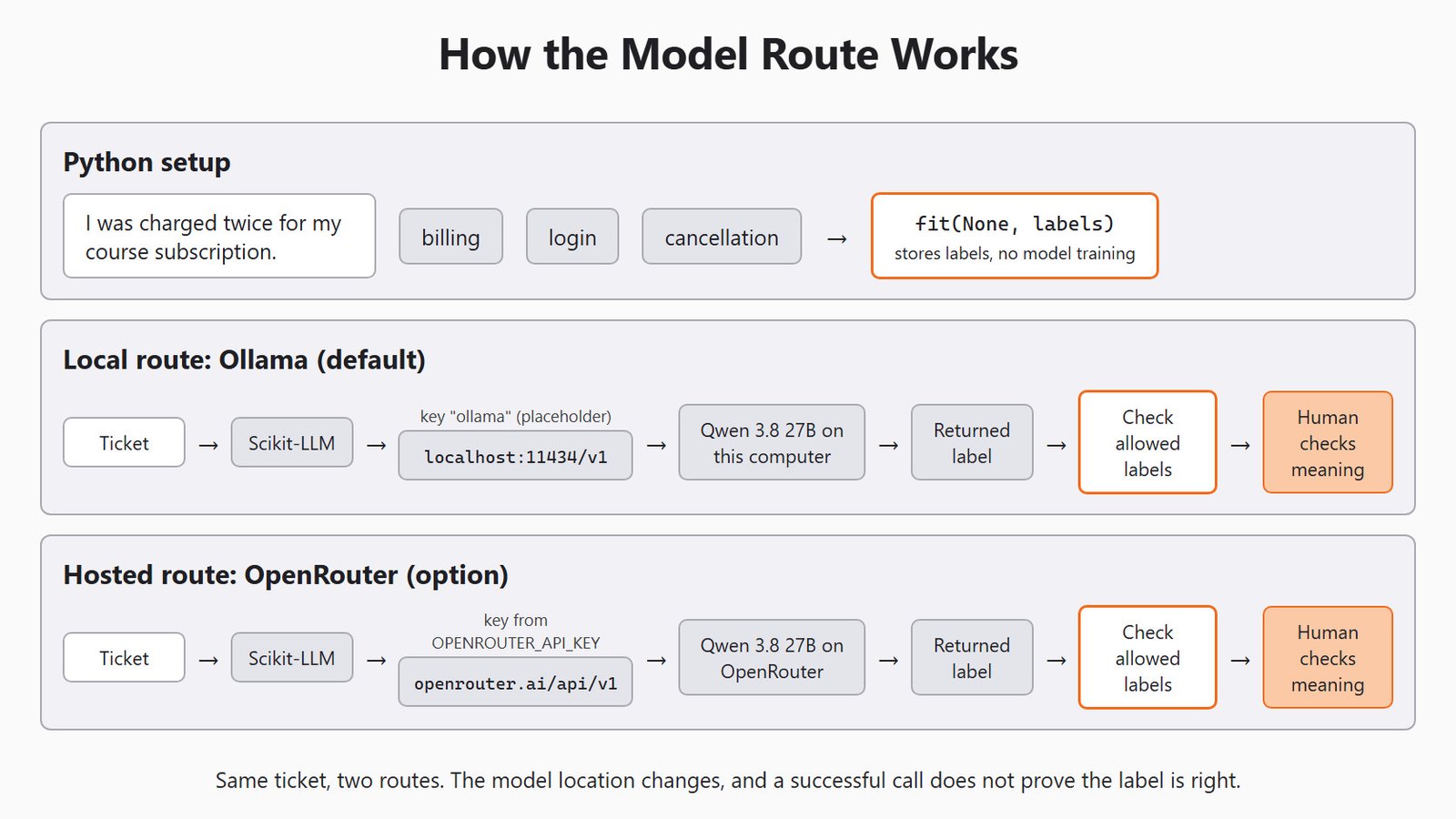
Here is the whole route for one ticket, with the local default and the hosted option.
Package, Model and Backend
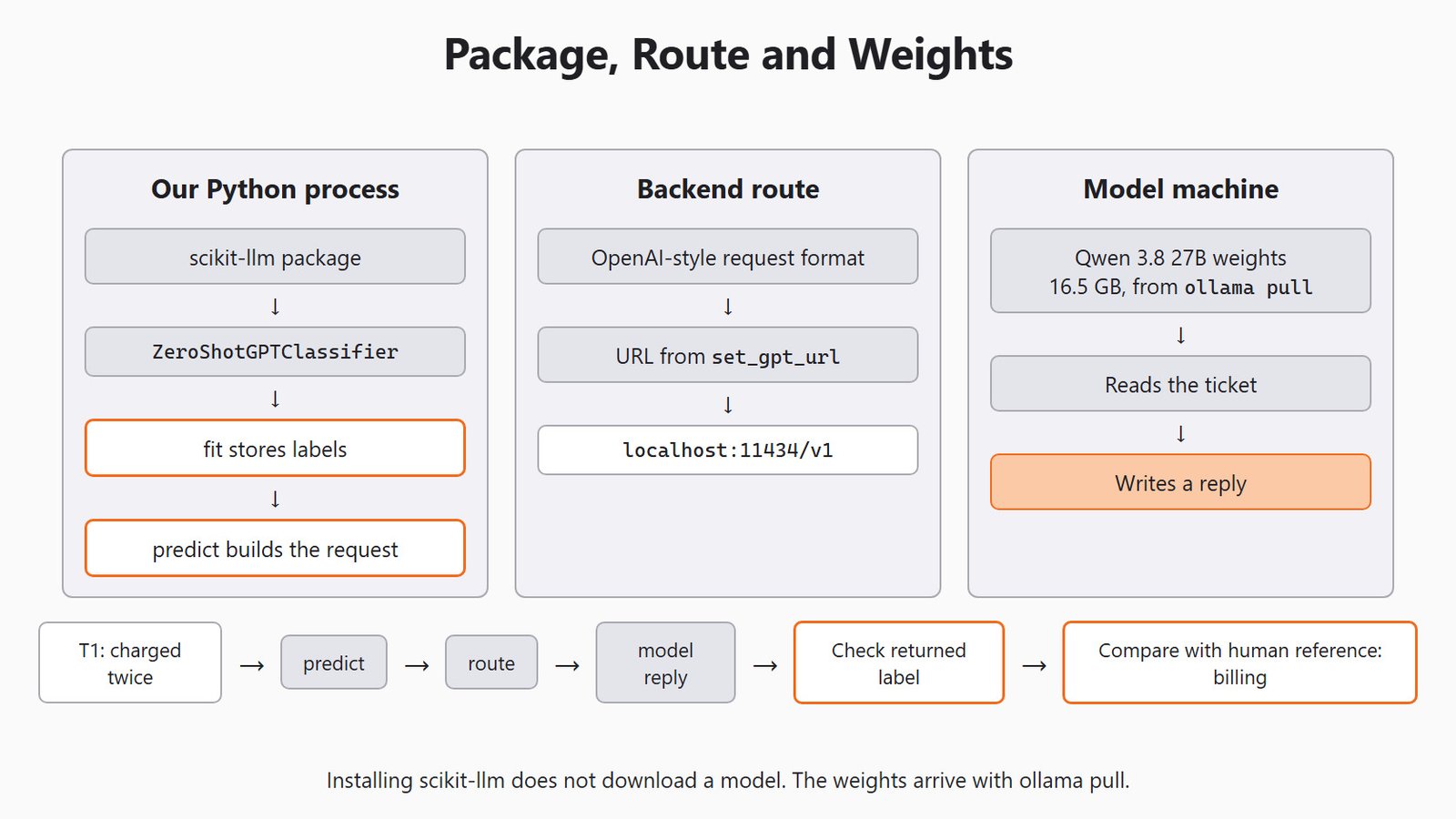
Three words get mixed up in every setup. Scikit-LLM is a Python package: it gives us classes such as ZeroShotGPTClassifier. A model is the trained system that reads the ticket and writes a reply. A backend is the route Scikit-LLM uses to reach that model.
Think of posting a letter. Our script writes the letter, the backend is the delivery route, and the model is the reader at the other end. If the route fails, we have learned nothing about how well the reader understands us.
The Scikit-LLM backend guide groups routes by the request format they use. The gpt family covers any service with an OpenAI-style API. So the name ZeroShotGPTClassifier tells us the request format, not who made the model. Ollama and OpenRouter both accept that format, which is why the same class works with both.
Here, the package runs in our Python process, the route carries the request, and the model weights sit wherever the model runs.
Start from the Day 1 Environment
We keep using the virtual environment from Day 1. We open its Python by its full path, so we cannot pick up another Python by mistake:
.\.venv\Scripts\python.exeNow we check the package version inside that session. version() reads the installed package details:
from importlib.metadata import version

print(version("scikit-llm"))1.4.3Here, we can see 1.4.3, the version this series is checked against. If we see a different number, or an import error, we are in the wrong Python.
The Default Route: Ollama on Our Machine
This is the setup block every lesson in the series starts with. The Ollama lines are active, and the OpenRouter lines wait behind # signs:
import os

from skllm.config import SKLLMConfig

# Default: Qwen 3.8 27B running on our own machine through Ollama
SKLLMConfig.set_gpt_url("http://localhost:11434/v1")
SKLLMConfig.set_gpt_key("ollama")
MODEL = "custom_url::qwen3.8:27b"

# Option: the free Qwen 3.8 27B on OpenRouter (uncomment these lines)
# SKLLMConfig.set_gpt_url("https://openrouter.ai/api/v1")
# SKLLMConfig.set_gpt_key(os.environ["OPENROUTER_API_KEY"])
# MODEL = "custom_url::qwen/qwen3.8-27b:free"
Let's go through the active lines one by one:
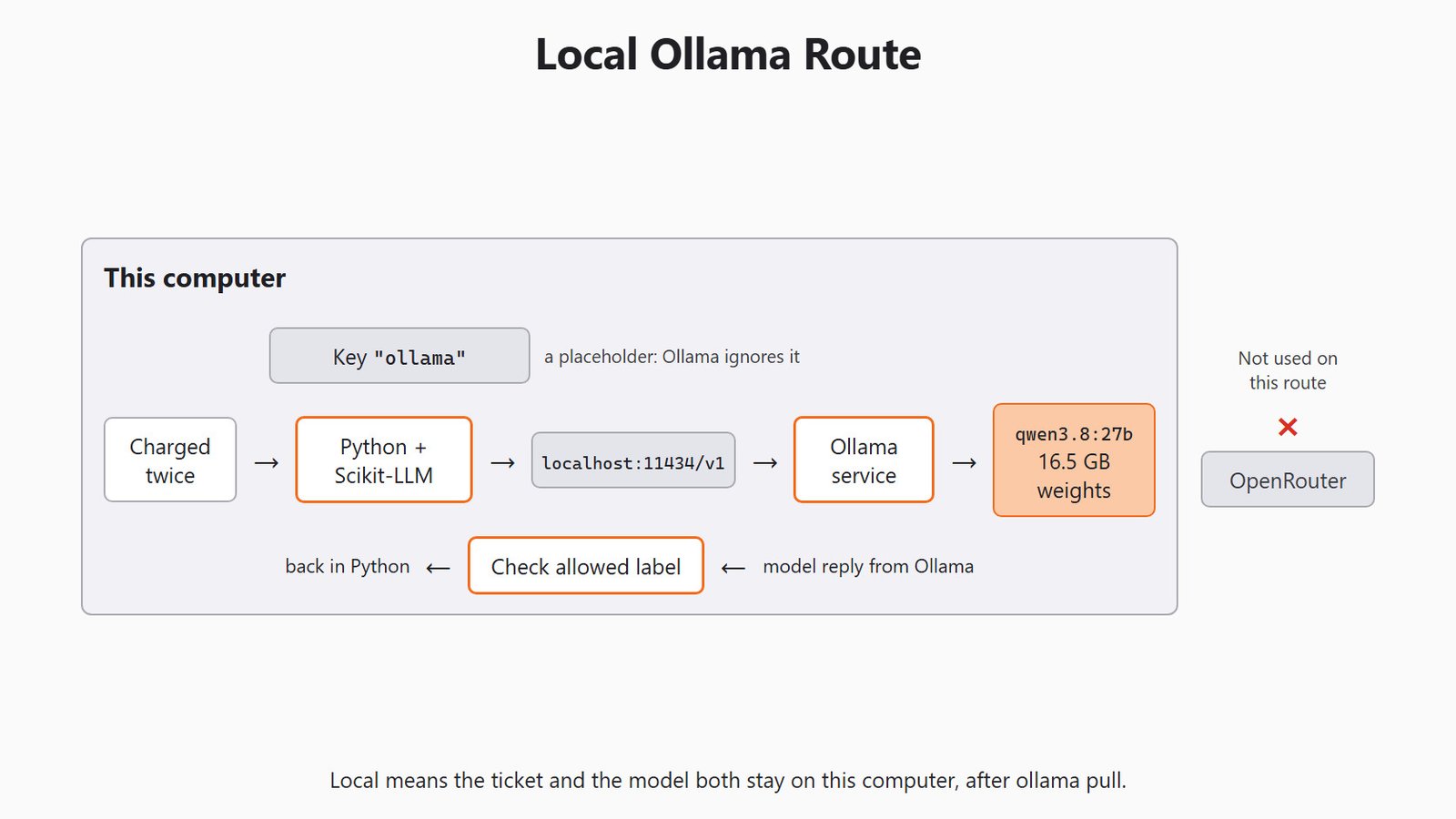
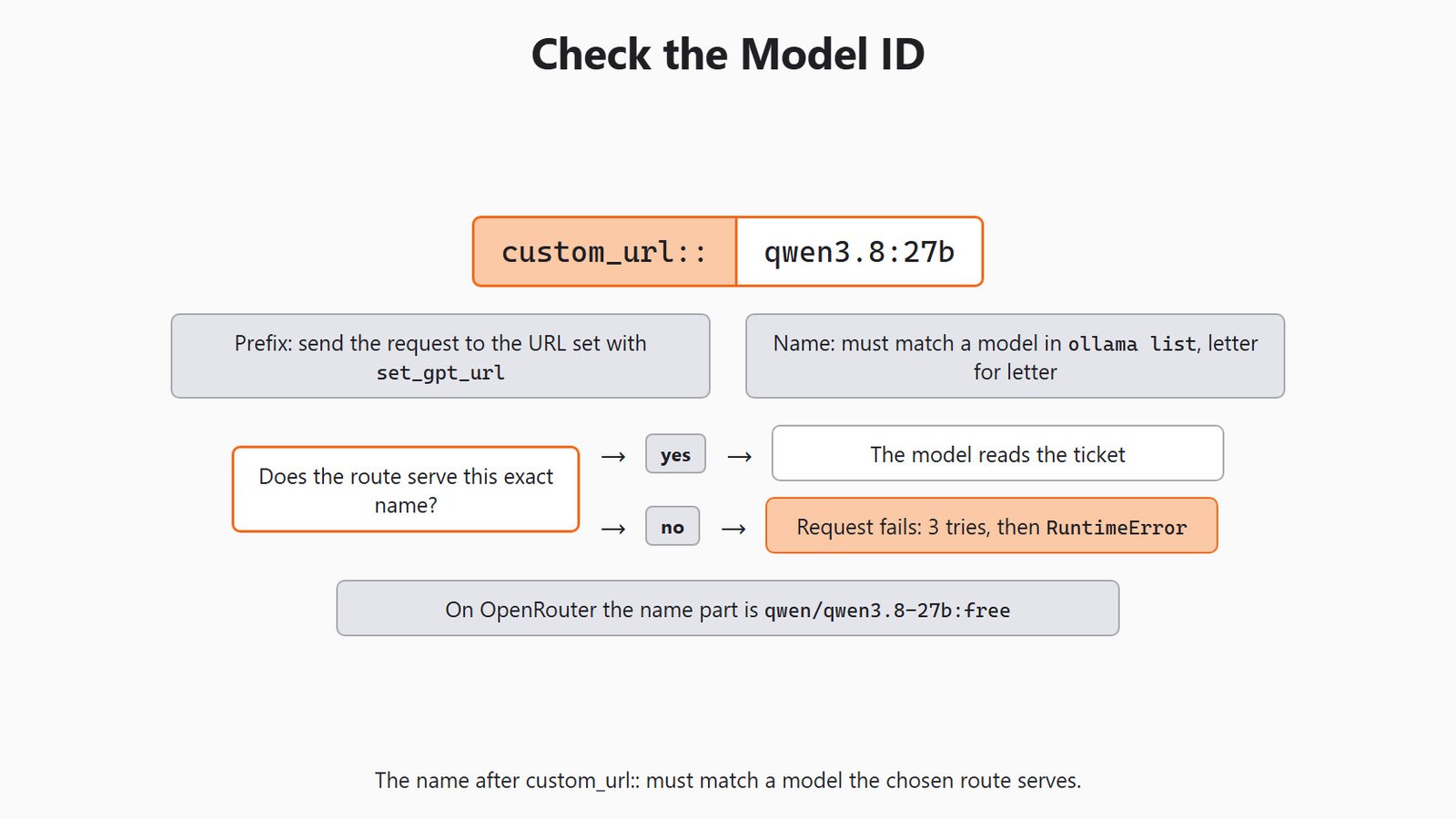
set_gpt_url("http://localhost:11434/v1")sets the address for every request.localhostmeans this computer,11434is the port Ollama listens on, and/v1is its OpenAI-style entrance.set_gpt_key("ollama")gives the client a key. Without any key, Scikit-LLM stops withRuntimeError: OpenAI key was not found, even for a local model. Ollama ignores the value, so"ollama"is only a placeholder, not a secret.MODEL = "custom_url::qwen3.8:27b"has two parts.custom_url::tells Scikit-LLM to send the request to the URL we set.qwen3.8:27bis the model name Ollama knows, and it must match what we pulled.import osis only used by the OpenRouter lines. It stays so that uncommenting them just works.
We can confirm the address without calling the model. get_gpt_url() reads back the stored value:
print(SKLLMConfig.get_gpt_url())http://localhost:11434/v1Here, we can see the Ollama address, so the next request will go to our own machine.
The local route keeps everything on this computer: the ticket, the Ollama service and the downloaded model weights.
The model name is the part that most often goes wrong. The text after custom_url:: must match a model that Ollama has downloaded, letter for letter. The command ollama list shows the models on our machine.
What does the request carry? For a custom_url:: model, Scikit-LLM sends only three things: the messages, the model name and temperature set to 0.0. A temperature of 0.0 asks the model for its most likely words instead of varied ones. There is no special JSON switch. Instead, the prompt itself asks the model to reply in JSON.
Note
Qwen 3.8 is a thinking model: it reasons before it answers. Ollama puts that reasoning in a separate reasoning field of its reply. Scikit-LLM only reads the content field, which holds the final answer, so the label stays clean. The thinking still takes time, so each call is slower than a plain answer would be.
The model itself is the 16.5 GB download from Day 1. It runs on our hardware, so there is no bill per call. The cost is time and memory: a slower machine gives slower answers.
Send One Ticket Through the Route
Now we create the classifier with MODEL and store our three labels. default_label names a marker for a reply that fails the label check. It is not a fourth support category.
from skllm.models.gpt.classification.zero_shot import ZeroShotGPTClassifier

clf = ZeroShotGPTClassifier(model=MODEL, default_label="needs_review")
labels = ["billing", "login", "cancellation"]
clf.fit(None, labels)
For this zero-shot class, fit() stores the choices. It does not train the model.
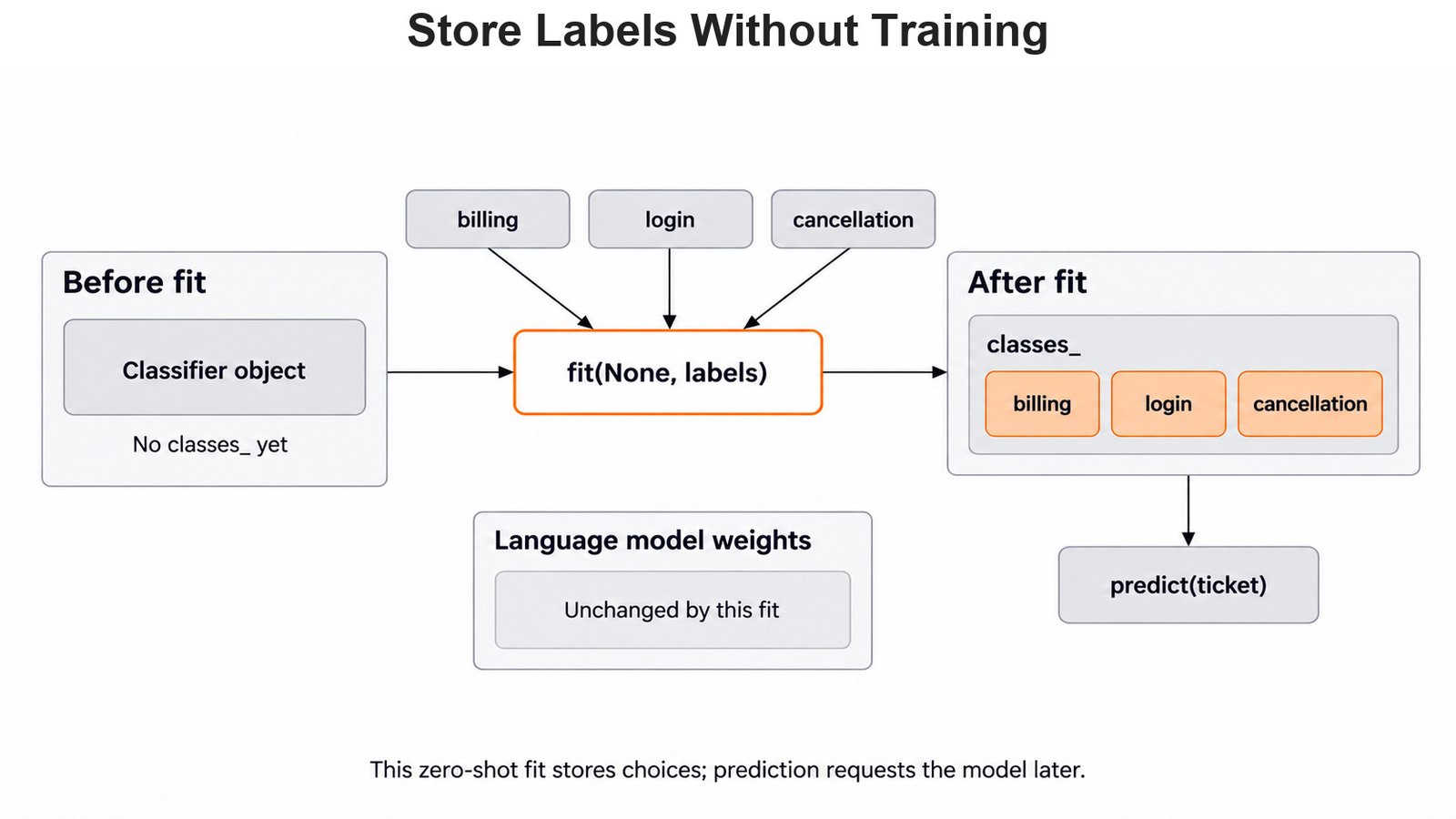
Next, we send one made-up ticket. This is the first line that actually talks to Ollama:
ticket = ["I was charged twice for my course subscription."]
prediction = clf.predict(ticket)
print(prediction)
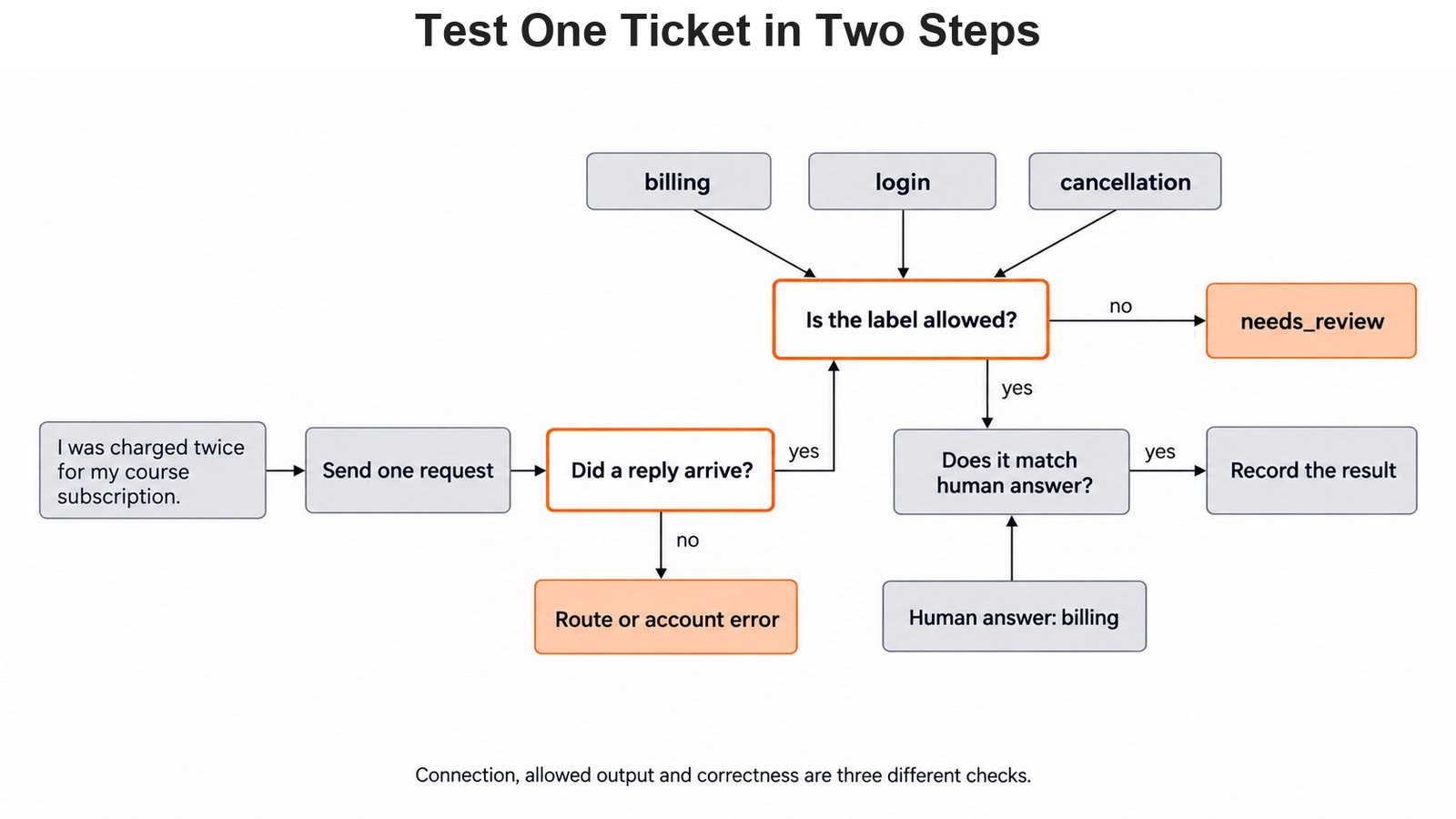
This prints a NumPy array with one label in it. That label is billing, login, cancellation or needs_review. A reply proves the route works. It does not prove the label is right, so we still compare it with the human answer, billing.
One test ticket checks the route first, and only then do we ask whether its label is right.
The Option: Free Qwen 3.8 27B on OpenRouter
Not every machine can hold a 16.5 GB model. So, here comes OpenRouter to the rescue. OpenRouter is a hosted service that serves many models through one OpenAI-style API. Its model qwen/qwen3.8-27b:free is the same Qwen 3.8 27B, listed at a price of 0 with a 262,144-token context.
Free models have limits. OpenRouter allows 20 requests per minute and 50 requests per day on free models. After buying at least $10 of credits, the daily limit rises to 1,000. Each ticket is one request, so our six-ticket set uses 6 of the 50. OpenRouter limits
Unlike Ollama, OpenRouter needs a real key. We create one in the OpenRouter key settings after signing up. Then we save it as an environment variable, a named value that programs can read from the system. In PowerShell:
setx OPENROUTER_API_KEY "PASTE_THE_KEY_HERE"setx saves the value for new terminals only. So we close the current terminal, open a new one, and start .\.venv\Scripts\python.exe again.
We can check that Python sees the key without showing it. This line prints True or False, never the key itself:
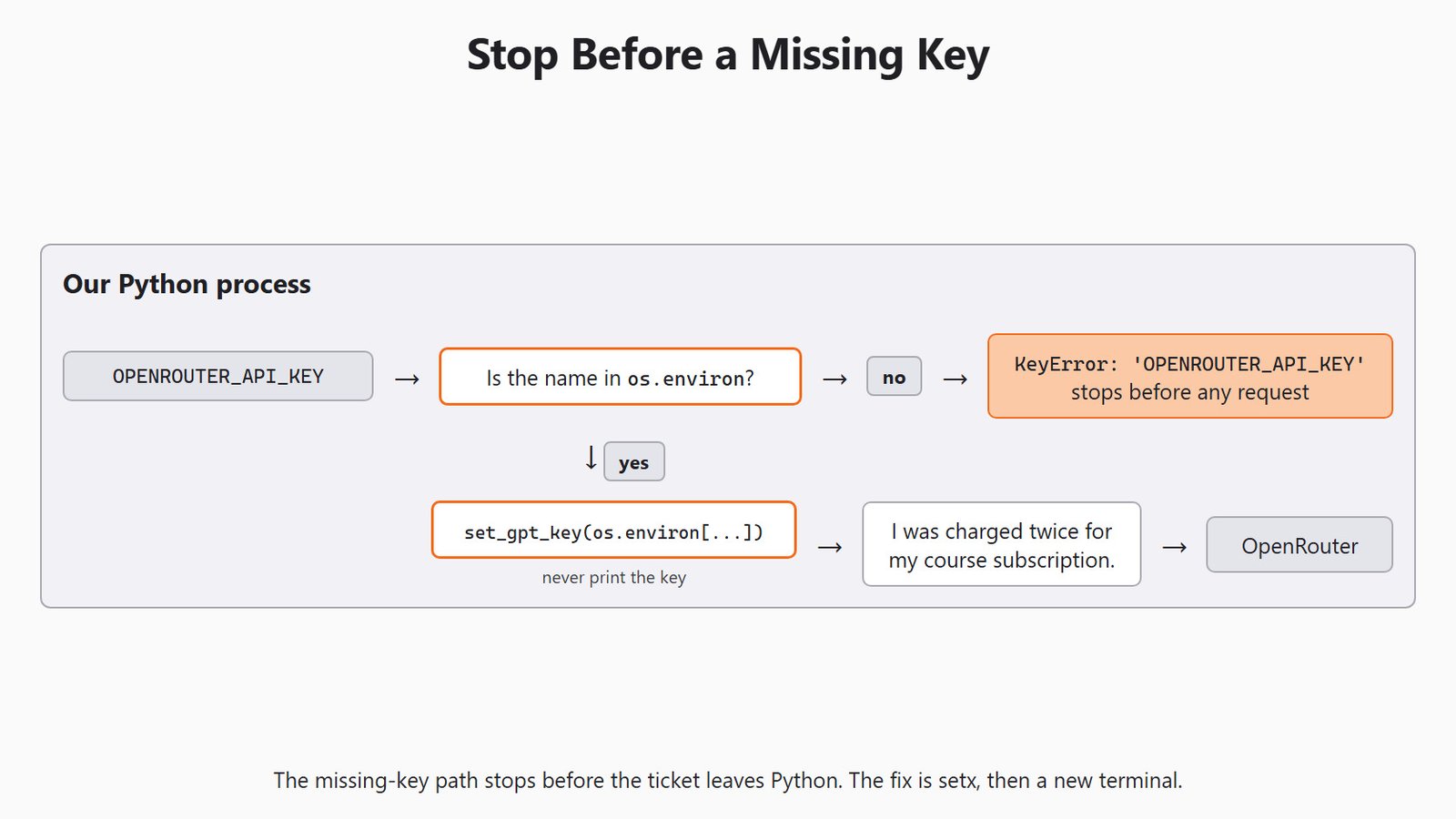
print("OPENROUTER_API_KEY" in os.environ)If it prints False, the terminal was opened before setx, or the name is misspelled. In that case, the setup line os.environ["OPENROUTER_API_KEY"] stops with KeyError: 'OPENROUTER_API_KEY' before any request leaves our machine. That is the clear failure we want.
Caution
Never print the OpenRouter key, paste it into a notebook cell, or commit it to Git. Anyone with the key can spend its limits and any credits on the account. If a key leaks, delete it in the OpenRouter settings and create a new one.
To switch, we add # in front of the three Ollama lines in the setup block and remove it from the three OpenRouter lines. Everything else stays the same, because every estimator uses model=MODEL. Calling set_gpt_url() and set_gpt_key() again simply replaces the old values.
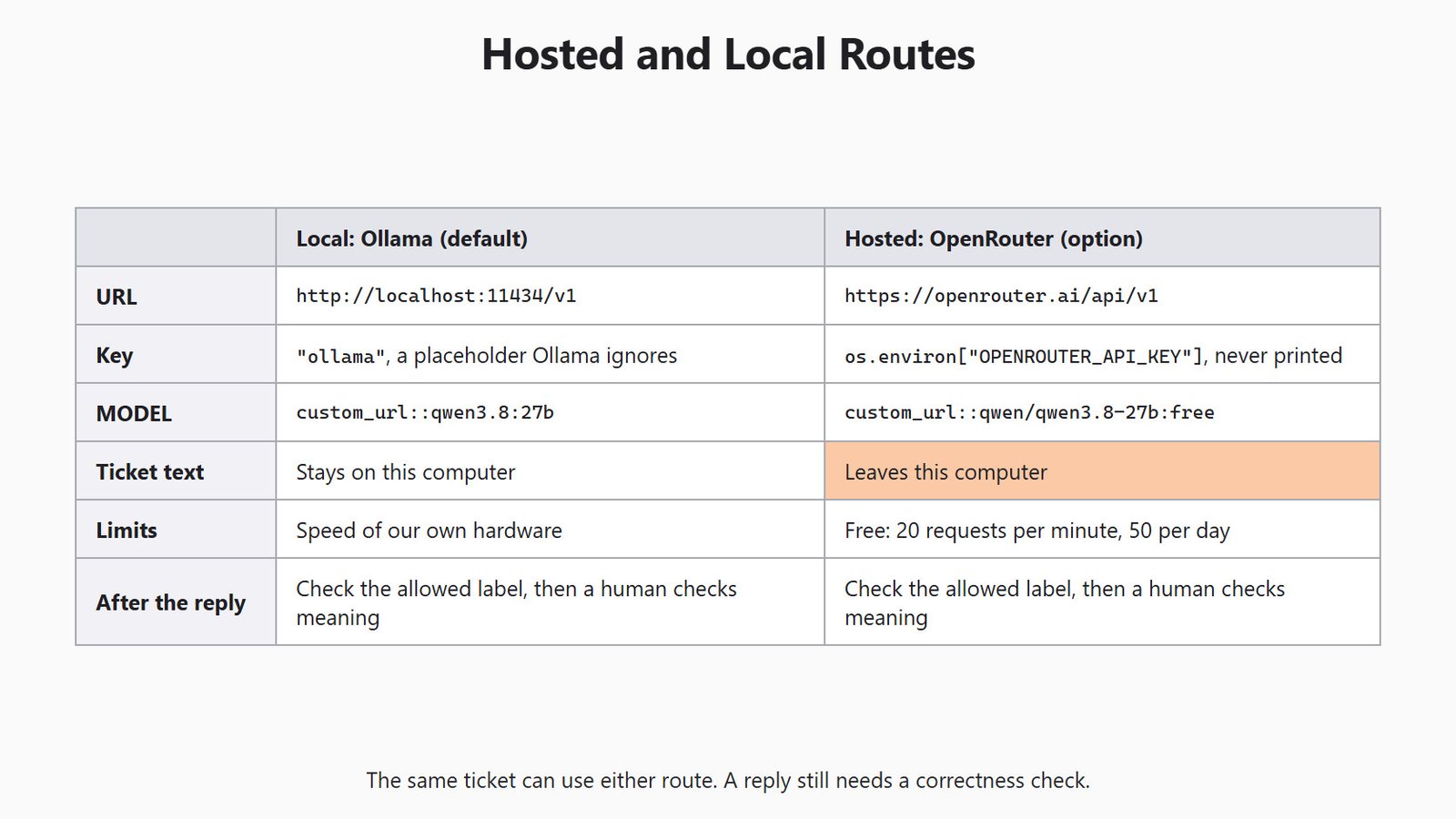
There is one real difference to keep in mind. On OpenRouter, the ticket text leaves our computer and goes to a hosted service. With Ollama, it stays on our machine. Our lesson tickets are made up, but real support tickets need that decision first.
The same ticket can take either route, and the reply still needs a correctness check.
Switch Back with reset_gpt_url
SKLLMConfig.reset_gpt_url() removes the custom URL. Without it, Scikit-LLM falls back to its built-in default route, OpenAI's hosted API. We do not use that route in this series, but it helps to see what the reset does:
SKLLMConfig.reset_gpt_url()
print(SKLLMConfig.get_gpt_url())NoneHere, we can see None, so no custom URL is stored. Now any custom_url:: model has nowhere to go. The library stops at once, before any retry, with a ValueError:
try:
    clf.predict(ticket)
except ValueError as error:
print(error)You are using the `custom_url` backend but no custom URL was provided. Please set it using `SKLLMConfig.set_gpt_url(<url>)`.Here, we can see the library telling us exactly which call is missing. So, the reset only removes the URL, while the key stays whatever we set last.
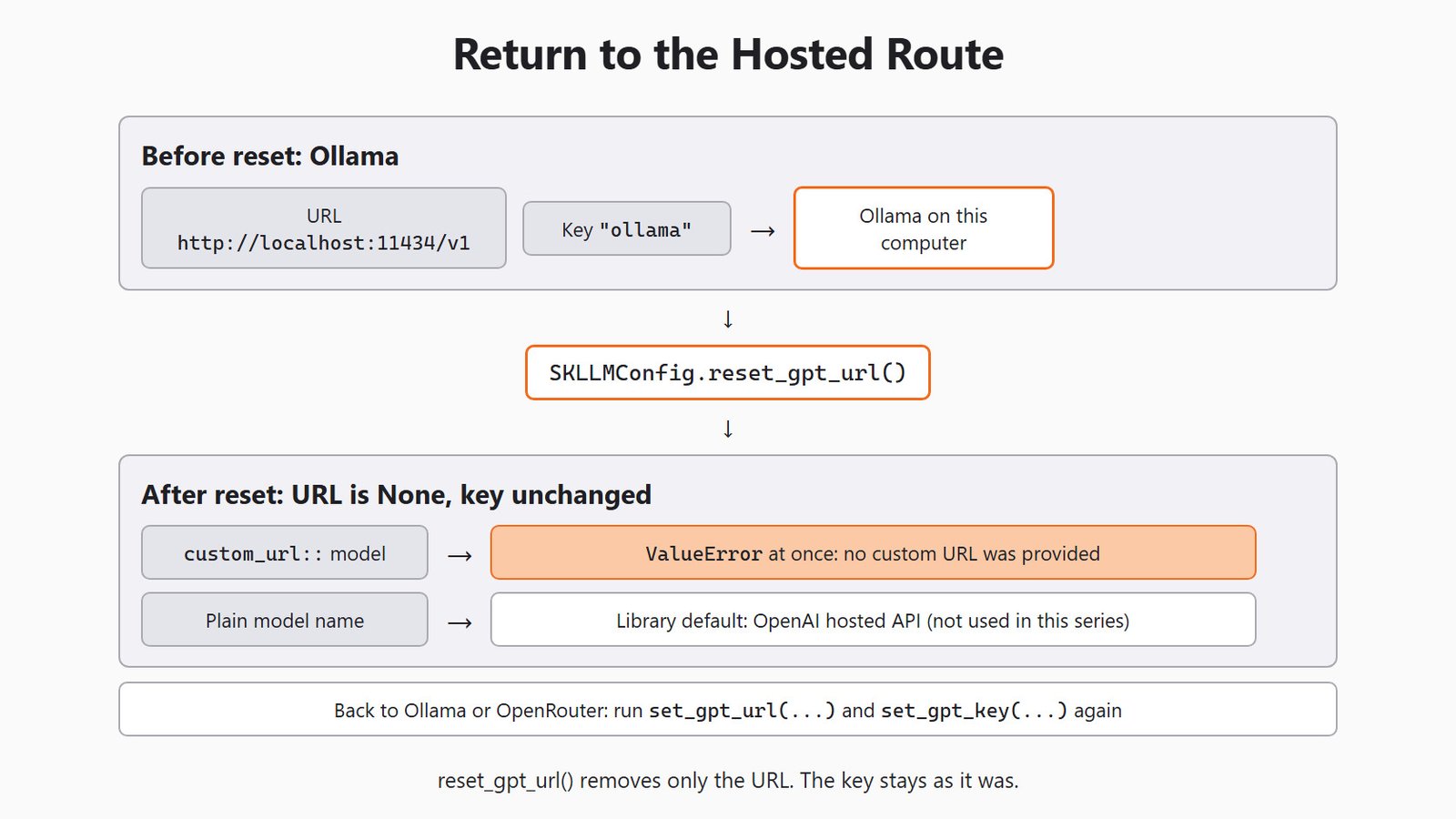
To get back to Ollama, we set both values again:
SKLLMConfig.set_gpt_url("http://localhost:11434/v1")
SKLLMConfig.set_gpt_key("ollama")
Our clf still holds MODEL, so its next predict() goes to Ollama again. We never need a reset to move between Ollama and OpenRouter, because setting the URL replaces the old one.
Read Setup Errors as Clues
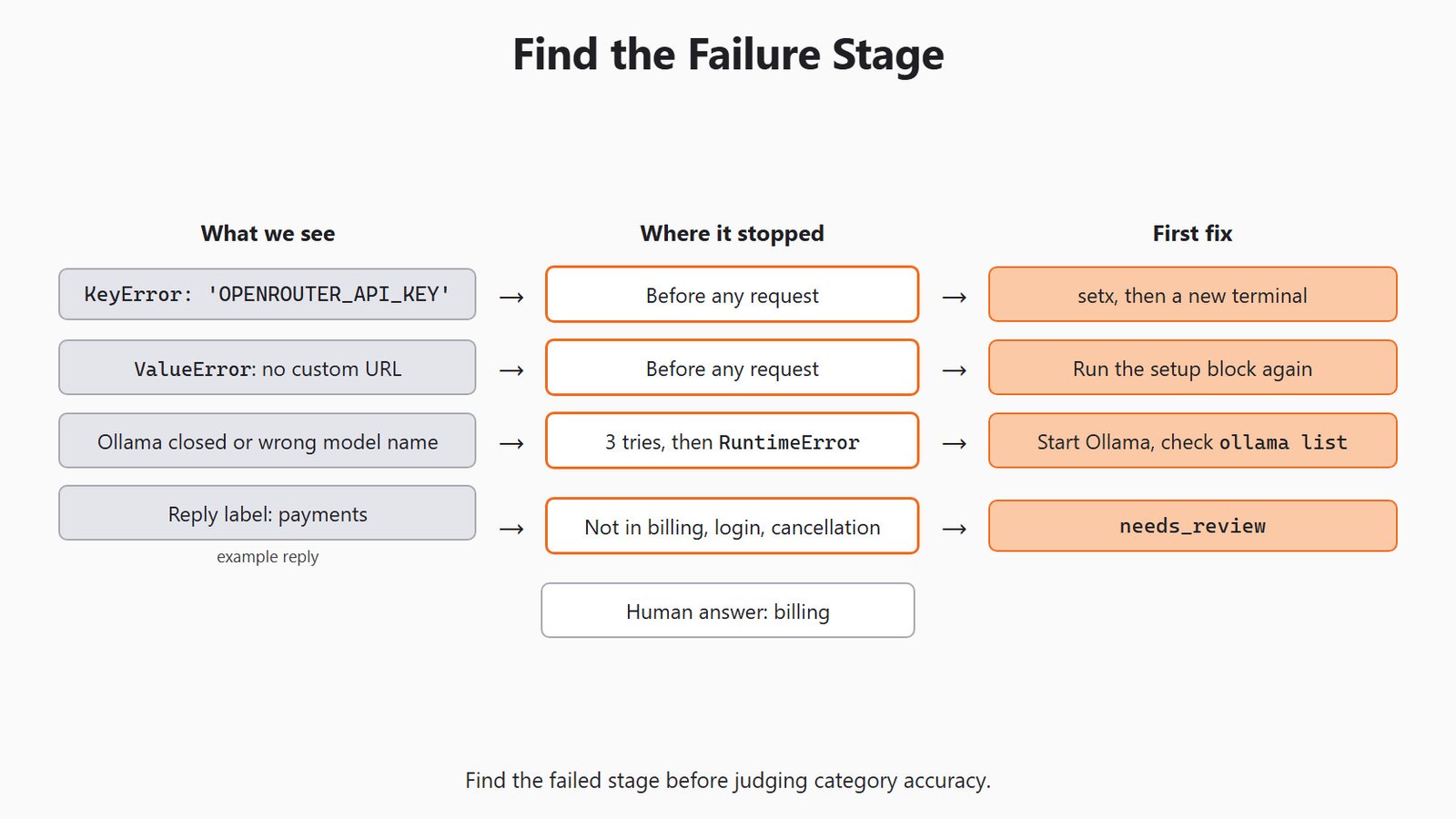
When a call fails, we first ask how far the request got. Let me tabulate what we might see and where to look first.
| What we see | What it means | First fix |
|---|---|---|
ModuleNotFoundError: No module named 'skllm' |
This Python does not have the package. | Start .\.venv\Scripts\python.exe. |
KeyError: 'OPENROUTER_API_KEY' |
The key is not in this terminal's environment. | Run setx, then open a new terminal. |
ValueError about no custom URL |
The URL was reset or never set. | Run the setup block again. |
RuntimeError: OpenAI key was not found |
No key was set at all. | Run the set_gpt_key() line. |
RuntimeError: Could not complete the operation after 3 retries |
The request never got a usable reply. | Check that Ollama runs, the model name, or the key. |
needs_review in the results |
A reply came back, but its label was not allowed. | Read the ticket and the label list. |
| An allowed but wrong label | The setup works. | Study the task itself, from Day 3 on. |
The RuntimeError row needs a closer look. Scikit-LLM wraps every model call in a retry. It tries 3 times, waiting 1, 2 and 4 seconds after each failed try. After the third failure, it prints the reason and raises RuntimeError. With Ollama closed, our run printed:
Could not complete the operation after 3 retries: `APIConnectionError :: Connection error.`The error type is always RuntimeError. The original cause, here APIConnectionError, only appears inside the message text. So we read the message, not just the type.
A failed stage points to its own fix, and none of these errors says anything about label accuracy.
Warning
A failed call is slow, not instant. The OpenAI client inside Scikit-LLM also retries within each of the 3 tries. On our Windows PC, with Ollama closed, one predict call took 49.5 seconds before the RuntimeError.
Time One Prediction
A timer shows how long one call really takes. Python's perf_counter() measures the time between two points. We start it just before the call and read it in finally, which runs whether the call works or fails:
from time import perf_counter

started = perf_counter()
try:
    one_result = clf.predict(ticket)[0]
except RuntimeError as error:
    print("request failed:", error)
else:
    print("returned label:", one_result)
finally:
    print("elapsed seconds:", round(perf_counter() - started, 1))
On success, this prints the returned label and the time taken. That time includes the model's thinking, so it depends on our machine. The very first call can be slower, because Ollama has to load the model into memory.
On failure, the library first prints its own retry message. Then our except line prints the same text after request failed:. The elapsed time includes all the retries and waits, like the 49.5 seconds we measured with Ollama closed. We catch RuntimeError because that is the only type a failed model call raises.
Tip
Before a bigger run, we write down four things: the Python version, the scikit-llm version, the MODEL string and the URL. We never write down the key. This short record explains most differences when a classmate gets another result.
Conclusion
This is how Scikit-LLM backends work. The package builds the request, set_gpt_url() and set_gpt_key() choose the route, and the custom_url:: part of MODEL sends it there. We set up the default route to Ollama on our own machine. We saw how to switch to the free OpenRouter model, with its key kept in the environment. Finally, we used reset_gpt_url() to remove the custom route.
- The package, the backend and the model are three separate parts.
"ollama"is only a placeholder key; the OpenRouter key lives inOPENROUTER_API_KEYand is never printed.- A
custom_url::model needs a URL, or it stops at once with aValueError. - A failed call ends in
RuntimeErrorafter 3 tries, and the real cause is in the message text. - A working route is a setup check, not proof that a label is right.
Next steps:
- Go back to Day 1 to see this setup inside the full six-ticket example.
- Continue with Day 3, where we design clearer zero-shot labels.
- Learn more Ollama commands in the Ollama setup guide.
We now have a model route we can read, switch and test before asking the model to sort more tickets.


